
On this page
A form only works if people find it. Online, that's a link. In a shop, a school or a church hall, it's a poster by the door or a card on a table. Nobody types a long web address from a poster. They point a phone at a square and expect something to open.
That's what a QR code for a form does. This guide shows how to make a QR code for a form in HornetForms, and how to get one for a Google Form or a Microsoft Form. Then it covers where to put the code, what to write beside it and how to test it before you print. You'll also see how to give each poster its own code, so you know which spot brought in the responses. At the end there's a free poster, a fold-up table tent and a location tracker.
Get the form link first#
A QR code is a web address drawn as a pattern a phone camera can read. Scan it, and the phone offers to open the address. So a QR code for a form is only as good as the link inside it. Sort out the link before you make the code:
- Publish the form. In HornetForms, the Share tab tells you plainly: "These links and embeds work once you publish your form." A code made from an unpublished form opens nothing useful.
- Pick a short address. The Share tab lets you change the form's slug on every plan, so
forms.hornetforms.com/f/cafe-feedbackreplaces a string of random letters. People who can't scan can type it. - Then leave the address alone. Editing your questions doesn't change the link, so you can fix a typo after the posters go up and click Publish changes. Changing the slug does change it, and the printed code still holds the old one.
Still building it? Our guide on how to create an online form walks through it. Keep it short: someone at a counter gives you a minute, not ten. Our form design best practices post covers what makes a form easy to finish on a phone.
How to make a QR code for a form in HornetForms#
Every HornetForms plan includes QR codes, Free included. Here's how to make a QR code for a form:
- Open the Share tab in the form's top navigation.
- Choose the link. The Link card shows the public link. On Pro and Business, a Domain menu lets you pick your own verified domain instead of the HornetForms address. If your form has translations (Pro and Business), a Language menu appears too, and the Share tab notes that "The link and QR code open the form in this language."
- Find the QR code card. It says "Print it or add it to slides so people can scan to open." The code updates to match the link you picked.
- Download it. Click Download PNG or Download SVG. Each file takes its name from your slug, like
cafe-feedback-qr.png.
Which file should you use?
| File | What you get | Use it for |
|---|---|---|
| PNG | A 512 by 512 pixel image with a thin white border, one square wide | Slides, emails, a quick printout from Word |
| SVG | A vector file that stays sharp at any size | Posters, banners and anything you send to a printer or designer |
Both files use error correction level M. QR codes carry some spare data, which helps a phone read one with a small scuff or smudge. Level M is a sensible middle setting for print.
One detail matters for what comes later. The Share tab's code holds the link you picked, with the language if you chose one, and nothing else. It holds the plain link, which suits one code everywhere. For one code per location, see the tracking section below.
QR codes for a Google Form or Microsoft Form#
Using a different form tool? Here's what each maker's own help pages say, checked on 28 October 2026.
Microsoft Forms has a QR code built in. Open Collect responses, then follow Microsoft's steps: "Select the QR code button, and then click or tap the Download button, which will download your QR code as a .png file." (Microsoft Support, Share a form, accessed 28 October 2026). Check who can respond first. With "Only people in my organization can respond", Microsoft says "Only people within your organization, signed in with a work or school account, can submit responses to your form or quiz." A poster for the public needs Anyone can respond. Not sure which tool to use? You can compare Microsoft Forms and Google Forms job by job.
Google Forms gives you the link, and you turn it into a code. Google's help page says to click Share, then Copy responder link. Once you publish the form, you can also tick Shorten URL (Google Docs Editors Help, Publish & share your form with responders, accessed 28 October 2026). For the code, Chrome can make one: open the form link, then select More, Cast, save, and share, Create QR code, and download it. Google's Chrome help puts it simply: "You can create a QR (quick response) Code to share a tab from Chrome with others." (Google Chrome Help, Share tabs in Chrome, accessed 28 October 2026). One catch: if you turn on Limit to 1 response, Google notes that "To access and fill out the form, users must sign in to their Google Account." That's extra friction for someone scanning a poster. Still building the form? Here's how to make a Google Form from scratch.
Comparing the two? Here's how Google Forms and HornetForms compare.
Where to put a form QR code#
Put your QR code for a form where people already stand still with a free hand:
- Posters by the door or the counter. People wait there anyway. Replacing a paper form at the counter? See how to convert paper forms to digital.
- Table tents. A café table, a meeting room or a reception desk. Our tent prints a code on both sides, so it works from either chair.
- Receipts and order bags. Feedback right after a visit, while it's fresh.
- Sign-in desks. For volunteers, our volunteer hours log template shows a QR code at the desk that logs each shift.
- School pickup. A sign by the gate reaches parents while they wait, which suits our parent survey questions.
- Meeting and class sign-ins. Swap the clipboard for a sign-in sheet with a QR code.
- Notice boards and flyers. Bus stops, laundromats and school gates, as in our community needs assessment survey guide.
Sending replies to an invitation instead? Our RSVP QR code guide covers reply cards, wording and one reply per household. Running a quiz night? See how to run a quiz with a QR code.
A code on its own is a mystery square, so give it words. Every sign needs three things: what the code does, a short link for anyone who can't scan, and who is asking. That last one matters. The US Federal Trade Commission warns about fake codes stuck over real ones. Its advice: "If you see a QR code in an unexpected place, inspect the URL before you open it." (FTC Consumer Advice, Scammers hide harmful links in QR codes to steal your information, accessed 28 October 2026). Your name on the sign, and a short link that matches it, help careful people say yes.
| Where it goes | Headline | Line under it |
|---|---|---|
| Feedback at a front desk | Scan to tell us how we did | Five quick questions. We read every answer. |
| Check-in at an event | Scan to check in | Skip the line at the desk. |
| Sign-up table or club fair | Scan to join the list | Leave your name and email, and we'll be in touch. |
| Receipt or order bag | Scan to rate your order | Tell us what to keep and what to fix. |
| Classroom or training room | Scan to share your thoughts | One minute before you go. |
| Volunteer sign-in desk | Scan to log your hours | Do it now while you remember. |
Our free poster has these lines ready to fill in, with a box for the code:
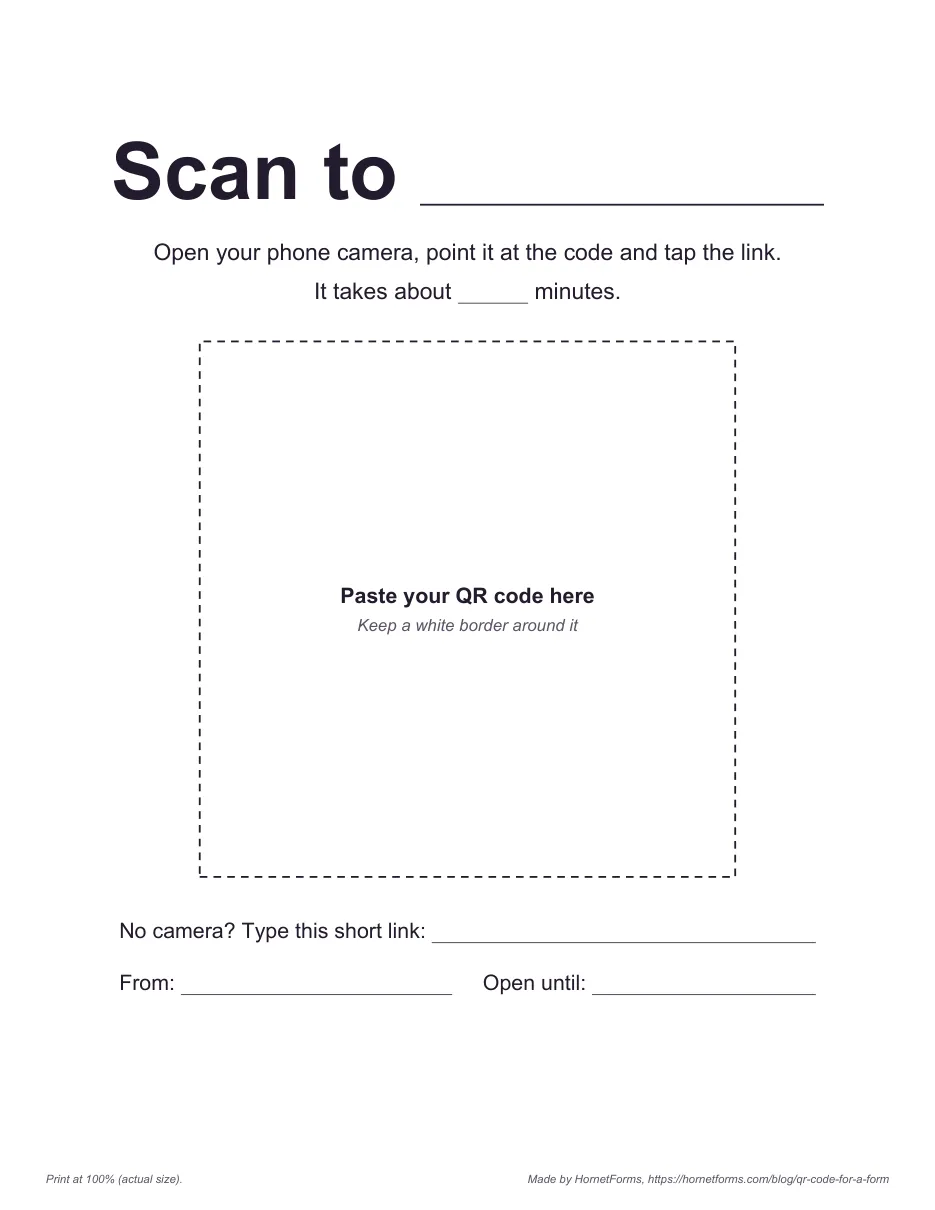
The poster. The A4 version has the same lines.
Track which poster worked#
One question the plain code can't answer: which poster brought the responses? Every scan of the Share tab code opens the same link, so a front desk response looks just like a lobby one.
The fix is one link per location, each with a tag on the end. The Share tab code opens the form. For one code per location, make a link with ?loc= for each spot and turn each link into its own QR code. Here's how in HornetForms:
- Add a hidden field named
loc. In the editor, add a Hidden field block from the Logic & data group and name itloc. Its settings say "Hidden fields are never shown," and the value comes from the form link. There's a Copy parameter button that copies?loc=for you. Hidden fields and URL prefill work on every plan. - Build one link per place. Add the tag to your form link, one value per spot:
https://forms.hornetforms.com/f/cafe-feedback?loc=front-desk
https://forms.hornetforms.com/f/cafe-feedback?loc=cafe-tables
https://forms.hornetforms.com/f/cafe-feedback?loc=receipt
If your link already has a ? in it (a language you picked adds one), use &loc= instead. The name must match the field exactly, upper and lower case included. Keep values short, lower case, with hyphens and no spaces.
- Turn each link into its own code. Open each link in Chrome and use Create QR code, as in the Google Forms steps above, or any QR code tool you trust. Label the back of every print so the front desk code doesn't end up on a café table.
- Test each one. Scan it and send a test response. The
locvalue should be in it.
Each response now carries its location. Hidden fields show up in the CSV export as a column named loc, as their own column in Google Sheets and beside the answers in Slack and Discord messages. Our guide to where your form responses can go covers each destination. If you also tag online links by campaign, tracking links with UTM parameters uses the same hidden field idea.
The free location tracker does the counting. Paste your form link once and list your locations. It builds every ?loc= link, checks each value and counts responses per location from your CSV export, with the date of the last response from each spot.
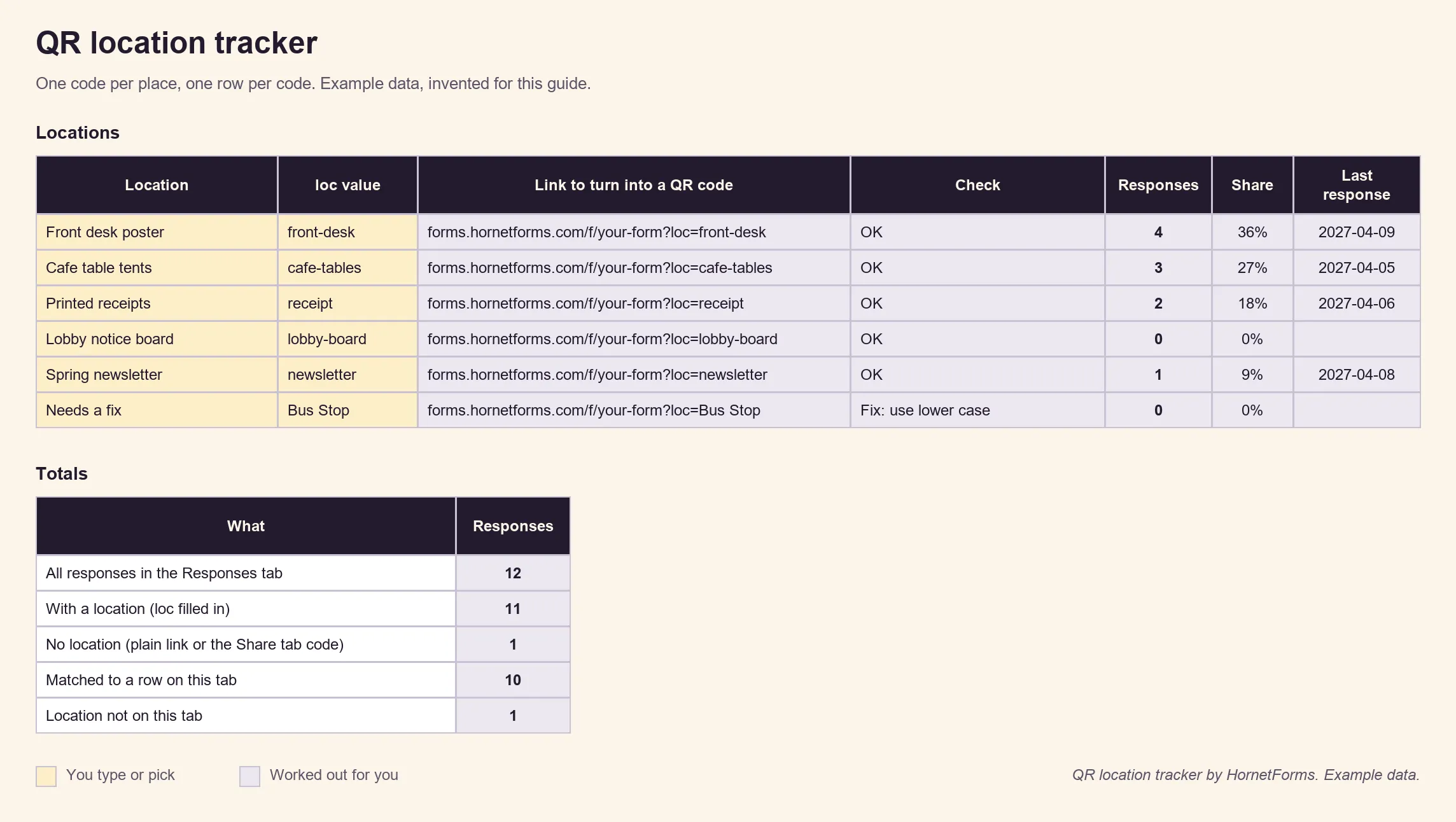
Example data only, invented for this guide. Clear the example rows and add your own.
It counts responses, not people. A response with no location came from the plain link, the Share tab code or the typed short address.
Test before you print#
A box of posters with a QR code for a form that won't scan is a bad morning. Test first:
- Print one copy at 100%, or "actual size", on the paper you'll use. "Fit to page" can shrink the code.
- Scan it with two or three phones, an older one included, from where people will stand. Try it in the real light of the room.
- Send a real response and check that it shows up on your Responses page, with the right
locvalue if you're tracking. - Type the short link by hand into a phone, exactly as printed.
- Check the closing setup. If you set a close date or a response limit, make sure it fits how long the posters stay up. When a form closes, people see a closed message, which you can write yourself. Here's what happens when a form hits its response limit.
Keep every form QR code big and plain: dark on a light background, with plenty of blank space around it and no text, photos or folds touching it. Don't stretch it to fit a box. If a code is slow to read, make it bigger before you try anything clever. And skip the logo in the middle. It looks nice right up until it doesn't scan.
You can turn on an email to yourself for each new response, so you know the poster works on day one. HornetForms has unlimited responses within fair use on every plan, Free included. Adding a rating or a "pick one" question? Here's which question type fits each job. If the same form should live on your site as well as on paper, here's how to embed a form on a website.
Questions people ask#
Is a QR code for a form free?#
In HornetForms, yes. QR codes come with every plan, Free included, as a PNG or an SVG download. Microsoft Forms and Chrome can make codes too, as their help pages above show.
Do form QR codes expire?#
The HornetForms code holds the form link itself, so it keeps working as long as that link does. You can edit the questions and click Publish changes without breaking it. Keep the form published and keep the slug.
How do I know which QR code people scanned?#
Give each spot its own link with ?loc= on the end and a hidden field named loc, then turn each link into its own code. Responses then carry the spot's name.
Get the free poster, table tent and tracker#
- Poster with a QR code box: PDF, US Letter or PDF, A4.
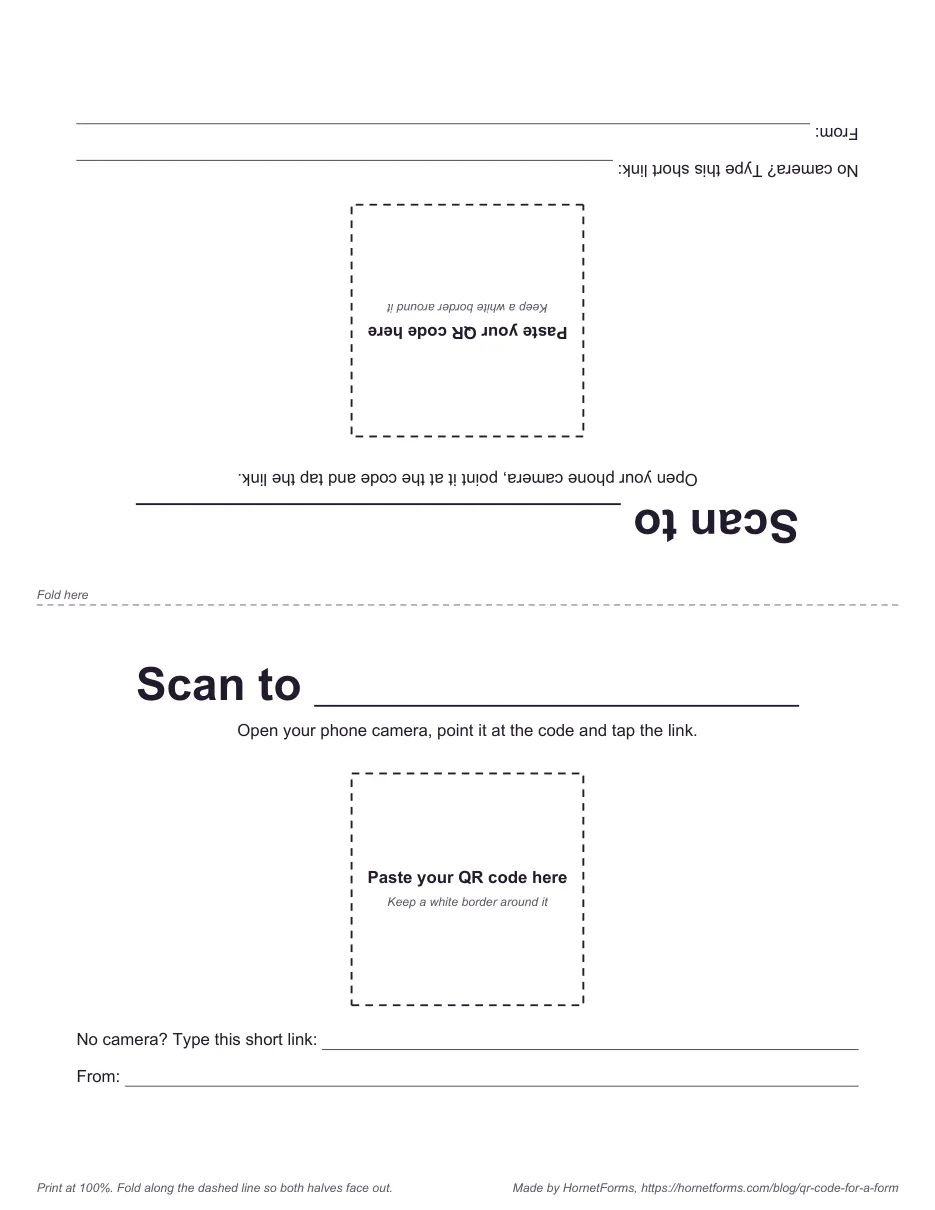
- Fold-up table tent: PDF, US Letter or PDF, A4. The back half prints upside down, so both sides read the right way up once you fold it.
- Editable poster and tent: the Word (DOCX) version lets you type your headline and short link and paste your code into the box. Its last page has the wording table above and a print checklist.
- Location tracker: the QR location tracker for Excel and Google Sheets, or a plain CSV of the locations list for any spreadsheet app.
Put your first code up this week#
Publish your form, set a short slug and download the SVG. Paste it into the poster, add your headline and short link, and test one copy before you print the rest. That's a QR code for a form people will actually scan. If you want a ready-made form to start from, the event registration form template works well behind a check-in code. Check the pricing page if you want your own domain in the code. Sign up for free and your QR code for a form is ready before the printer warms up.
QR Code is a registered trademark of DENSO WAVE INCORPORATED.