
On this page
Someone clicks your LinkedIn ad, reads the landing page and fills in your contact form. A new lead lands in your inbox, and the one thing you paid to learn is gone: which campaign sent them. To keep it, you need to capture UTM parameters in forms, not just in your analytics tool.
Two layers do the job. The built-in analytics tell you which source finishes the form. Hidden fields carry the source into every response, so it reaches your sheet, your Slack channel and, through Zapier or a webhook, your CRM. You'll also see how to keep UTMs in an embedded form and how to catch visitors with untagged links. At the end there's a free lead form template and a UTM naming sheet.
What UTM parameters are, and which ones you need#
UTM parameters are short tags you add to the end of a link. They say where the click came from. Analytics tools read them, and so can a form. There are five common ones:
| Tag | What it records | Example | Use it? |
|---|---|---|---|
utm_source | Who sent the visitor | linkedin, google, newsletter | Always |
utm_medium | The kind of traffic | paid-social, cpc, email | Always |
utm_campaign | Which push or offer | 2026-10-webinar | Always |
utm_content | Which ad or link inside the campaign | carousel-1, search-ad-a | When you test creatives |
utm_term | The paid keyword | form-builder | For search ads |
Google's own help page on URL builders is clear on the first three: "When you add parameters to a URL, you should always use utm_source, utm_medium, and utm_campaign." The same page adds a warning that matters later: "Parameter values are case sensitive, e.g. utm_source=google is different from utm_source=Google." (Checked 27 October 2026.)
How to capture UTM parameters in a form with hidden fields#
To capture UTM parameters in a form, you need hidden fields. A hidden field is a question the respondent never sees. It takes its value from the link that opened the form. Name the field after a URL parameter, and the form fills it in on its own.
Add one hidden field per tag#
In the HornetForms editor, add a Hidden field block for each tag you plan to use. Give each one the exact tag name, in lower case:
utm_source
utm_medium
utm_campaign
utm_content
utm_term
The name has to match the link exactly. A field called UTM_Source or source stays empty when the link says utm_source. Our logic, piping and calculations guide covers hidden fields and links that fill in answers. The field guide to question types shows where hidden fields fit among the rest.
Tag the link#
Now add the tags to the link you share. For a form on its own page, it looks like this:
https://forms.hornetforms.com/f/<your-slug>?utm_source=linkedin&utm_medium=paid-social&utm_campaign=2026-10-webinar
Each tag is a name=value pair. The first one follows a ? and the rest follow an &.
Test it with two links#
Before the campaign goes live, open the form twice: once with a tagged link and once with the plain link. Send a test response each time. Then open each response. The tagged one shows your values in the hidden fields, and the plain one shows them empty. If a value is missing, check the spelling of the field name first. It's the usual culprit.
Never put personal data in a UTM, like an email address or a customer name. People copy and share links, and they end up in places you don't control.
Keep UTMs when you embed the form on your landing page#
Most campaigns don't send people to the form's own page. They send them to a landing page with the form embedded in it. The ad link then tags the landing page, not the form:
https://example.com/demo?utm_source=linkedin&utm_medium=paid-social&utm_campaign=2026-10-webinar
The HornetForms embed script handles this for you. It reads the utm_* parameters from the page's address and passes them into the form. Your hidden fields fill in as if the visitor had opened the form's own link. The script passes up to 50 parameters in all. Here's a typical inline embed:
<div data-hornetforms-embed="your-slug"></div>
<script async src="https://forms.hornetforms.com/embed.js" data-hornetforms></script>
Copy the real code from your form's Share tab, since it already carries your slug and options. Use the embed script rather than a bare iframe: the script is the part that passes the parameters along. Our guide on how to embed a form on a website covers both options.
Other parameters work the same way. The Share tab's Forward page URL parameters setting decides which non-UTM parameters pass: All, None or Only these (a list you type). On the page, that setting becomes data-hf-forward-params. The utm_* tags pass in every case. If your site's addresses can carry sensitive values, pick Only these and list just the names your hidden fields need.
One thing to plan for: the form reads the address of the page it's on. Put the form on the page your ads point to, so the tags and the form meet on the same page.
Ask "How did you hear about us?" only when the link has no UTMs#
Plenty of people arrive with no tags at all. They typed your address, a friend sent a link or they found you in a search. For them, a plain question still helps: "How did you hear about us?"
Tagged visitors don't need to answer it, so show it only when utm_source is empty. In HornetForms, that's one logic rule: when the utm_source hidden field is empty, show the question. Everyone else skips it and never knows it was there.
Keep the options short and broad, like search engine, social media or a friend. Self-reported answers are fuzzy, but fuzzy beats blank.
Where the UTM data shows up#
There are two places to read UTM data in HornetForms, and they answer different questions:
| Where | What you see | Best for |
|---|---|---|
| Built-in analytics | Views, completions and the completion rate for each UTM source, medium and campaign | Which channel finishes the form, not just which one clicks |
| Hidden fields in each response | The tag values next to the answers, in the CSV export, Google Sheets, Slack, Notion, Zapier and webhooks | Knowing which campaign sent each lead, and passing it on to your other tools |
The built-in analytics come with every plan, set no cookies and never store IP addresses. Each response's detail view also shows the source, medium and campaign.
Hidden fields are what put UTMs in your exports. Because they're questions, they travel wherever responses go: one column each in Google Sheets, a line in each Slack message, a value in each webhook. On the Business plan, the REST API also returns UTM values with each response. For the full list of destinations, see where your form responses can go.
A busy campaign won't hit a ceiling either. HornetForms has unlimited responses on every plan, so a good week never locks the form. Here's why response caps bite on other tools.
Good to know: anyone can edit the values in a link before they click it. Treat UTM values as useful labels for counting leads, not as proof of where a person came from.
Count form conversions in GA4 or Meta#
If your ads run through Google Analytics 4 or Meta, you'll want each finished form counted there too. There are two routes, depending on where the form lives.
Pixels on the full-page form (Pro and Business). In the form's settings you can add a GA4 measurement ID, a Google Tag Manager container or a Meta Pixel. They load on the form's own page, not inside embeds. Google Tag Manager needs a verified custom domain, which comes with Pro and Business. The pixels receive only the form's slug and page number, never answers. You can turn on an optional consent banner that holds the pixels until the respondent accepts, and the pixels respect Global Privacy Control. See the pricing page for what each plan includes.
Events from an embedded form. When the form sits on your own page, your page's tags can count it. Turn on Send form events to the page's analytics in the Share tab, which adds data-hf-track to the embed code. The embed script then sends view, start, page and submit events to the Google Tag Manager data layer, gtag or Meta Pixel already on your page. In gtag, a finished form arrives as form_submit. For Meta, it arrives as a Lead event. The events carry only the form's slug (and the page number), never answers, and the script sends nothing when the visitor's browser sends Global Privacy Control.
Either way, your ad tool learns that someone finished the form, and the hidden fields still name the campaign behind each lead.
A UTM naming sheet so the data stays clean#
UTM tracking breaks in boring ways. One person types LinkedIn, another types linkedin, a third types li, and your report now shows three sources.
Most of that fragility is naming. To capture UTM parameters in forms cleanly, agree on four rules:
- Lower case only. Google treats
Googleandgoogleas two sources, so pick one. - Hyphens, not spaces.
paid-social, notpaid social. - A fixed list for source and medium. Agree on
linkedin,google,newsletter, and stick to it. - One campaign pattern. For example
yyyy-mm-topic, like2026-10-webinar, so campaigns sort by date.
The free UTM link builder sheet puts those rules in one file for Excel or Google Sheets. Pick a source and medium from dropdowns, type a campaign, and it builds the link. A Check column flags upper case, spaces and campaign names that break the pattern. Paste your CSV export into the second tab, and it counts leads by source, medium and campaign. Untagged leads get their own count by their "How did you hear about us?" answer. There's also a CSV with the column headers that match the template's export.
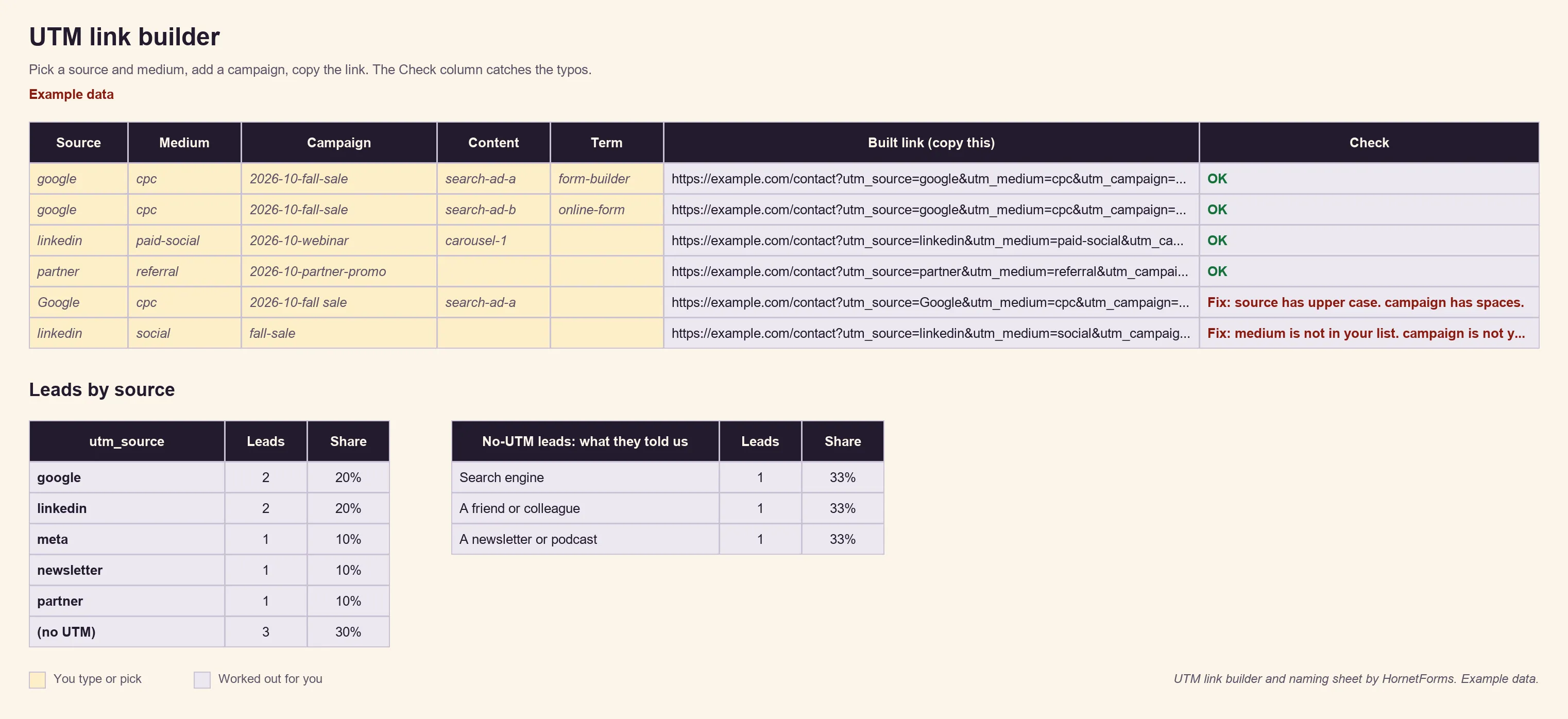
Example data only. The two broken links are on purpose, to show the Check column. Swap in your own sources, campaigns and leads.
A free lead form template with UTM tracking#
If you'd rather not build it from scratch, the "Lead form with UTM tracking" template does all of the above. It's one short page with a Send button:
- Full name, work email, company and "What can we help you with?"
- Five hidden fields:
utm_source,utm_medium,utm_campaign,utm_contentandutm_term - "How did you hear about us?", shown only when
utm_sourceis empty - A thank-you screen that promises a reply within one business day
Open it at forms.hornetforms.com/templates/campaign-lead-form, or find it in the template gallery under Lead generation. Change the questions to fit your offer, but keep the hidden field names exactly as they are. Giving away a free guide instead of a sales reply? The lead capture form template is built for that.
Try it on your next campaign#
Copy the template, tag one link per channel with the naming sheet, and embed the form on your landing page. The Free plan is free forever, with unlimited forms and responses, and the features page has the wider tour. Sign up for free and embed your first lead form today.