
On this page
Paper answer sheets work fine until you have 14 teams, one pen that works and a marking pile at 10 p.m. A quiz with a QR code moves the answering onto phones. Teams scan one code on their table, type their answers and press Submit. The grading happens for you, and the scores are waiting when the round ends.
This guide covers how to run a quiz with a QR code for a trivia night, a fundraiser or a class, from the build to the winners. There's also a free pub quiz answer sheet (10 and 20 questions) and a table tent card.
How a quiz with a QR code works#
You build the quiz as an online form, publish it and print its QR code: the form's link drawn as a pattern a phone camera can read. On the night:
- Each table gets the code on a table tent, a slide or both.
- One phone per team answers. The team types its name, then the answers.
- The form grades each answer against your key and stores the score.
- You read the results on your laptop and announce the winners.
Build it in HornetForms#
Quiz mode is on every plan, Free included. Here's the short version (our free quiz maker guide has the full walk-through):
- Add your questions. Multiple choice, dropdown, checkboxes and multi-select questions take a correct answer. You can grade short text and number answers too. Not sure which type fits a question? Here's every question type and when to use it.
- Turn on the quiz. The Quiz settings button in the editor header opens the Quiz panel. Mark the correct answer on each question.
- Set the points. Each question takes a whole number from 0 to 1,000, and 1 is the default. Make the picture round worth 2 a question if you like.
- Choose what teams see after submitting. Pick Hide results, Show score or Show score and correct answers.
- Publish, then open the Share tab for the link and the QR code.
Two settings suit trivia well:
- Short text with several accepted answers. Add up to 20 per question. Case doesn't count unless you switch on Match case, but accents do ("cafe" won't match "café"), so add both spellings.
- Number answers with a tolerance. "How tall is the Eiffel Tower in meters?" can accept a number within a range you set, so a close guess still scores.
For a pub quiz, Hide results is the safe pick while rounds are running, so no table can pass answers along. For a class, Show score and correct answers shows each question's marks, the right answer and any explanation you wrote. Shuffled options grade the same, so you can switch on Randomize option order on choice questions too.
Good to know: HornetForms grades on its own server, so the answer key never reaches the public form. It doesn't stop someone looking an answer up on that same phone. "Phones down between questions" stays a house rule.
Make and print the QR code#
In the Share tab, the QR code card offers Download PNG and Download SVG, on every plan. The PNG is 512 by 512 pixels, fine for slides. The SVG stays sharp at any size, so use it for print.
Put the code where teams can scan it from their seats:
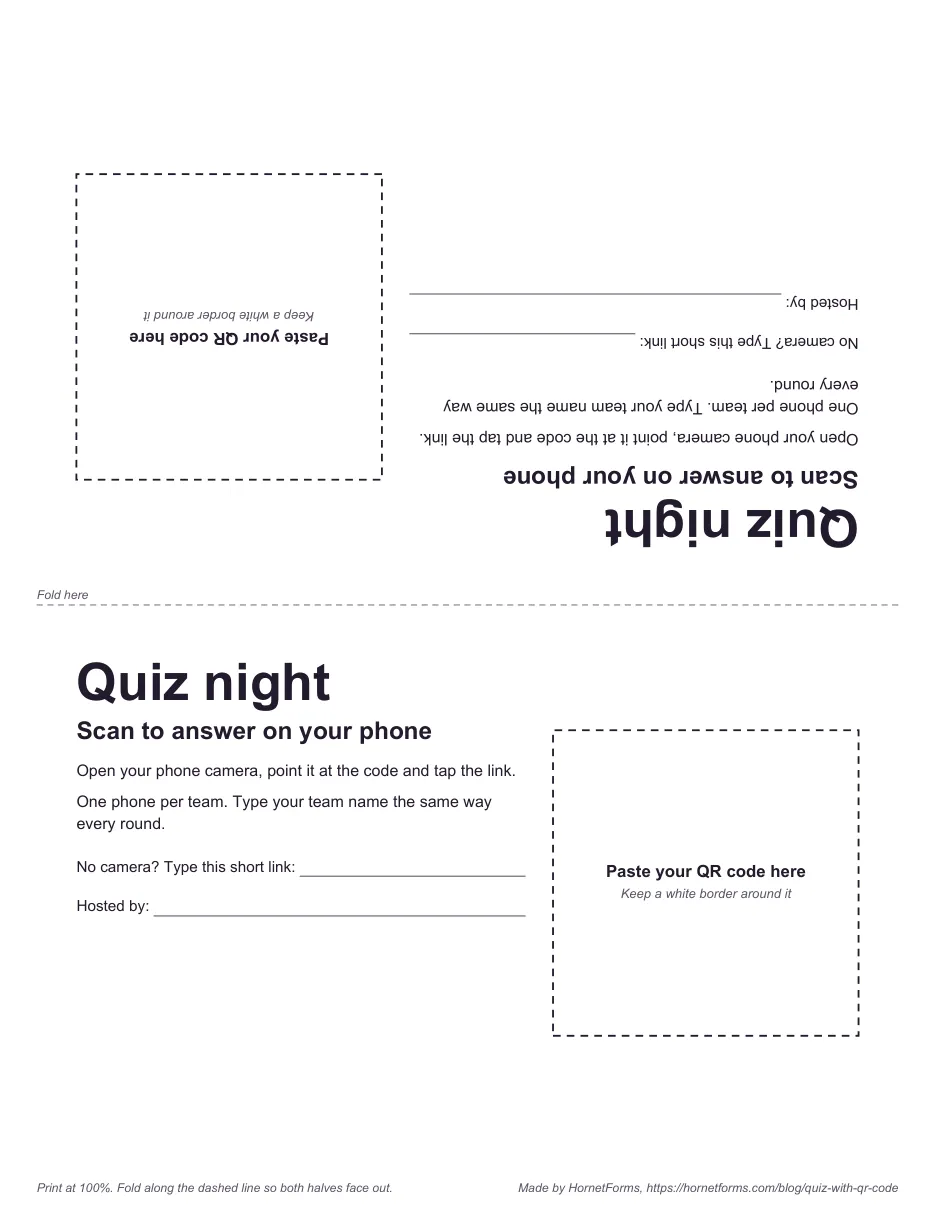
- A table tent on every table. Ours has a square for the code on both sides once folded.
- A slide on the big screen at the start of each round.
- The host table, for latecomers.
Print one test copy, scan it from a chair and send a test answer. Our guide on how to make a QR code for a form covers print tests and placement, and the RSVP QR code guide covers codes on invitations.
Keep it to one answer per team#
Start the quiz with a short text question: "Team name". Then open Settings, Access and switch on Limit to one response per person. Under Identify respondents by, pick the team name question.
That setting checks an answer, not who holds the phone. A second completed response with the same team name gets "A response with this answer has already been submitted." Case and spaces at either end don't matter. It applies only to responses submitted after you switch it on, so do that before the doors open. A team that types a different name gets through, so ask for one phone and one name all night.
Run the rounds#
You have two ways to split a quiz night.
| Setup | How it works | Best for |
|---|---|---|
| One form, a page per round | Add a New page from the / menu for each round. Teams press Next between rounds and Submit at the end | A short quiz, a class or a quiz the teams play at their own pace |
| One form per round | Each round is its own quiz with its own link and QR code. Teams submit after every round | A pub quiz where you read answers and scores between rounds |
For one form per round, use the schedule. Each form can open at a set date and time, with a notice until then, and the close date takes a time too. Round two can open at 8:30 p.m. and close at 8:50 p.m. Write your own closed-form message (up to 500 characters of plain text), such as "Round two is closed. Pens down, eyes on the host." Know how many teams are playing? A response limit set to that number closes the round after that many responses. Here's what happens when a form hits its response limit. Put the team name question at the top of every round's form, so you can add up each team's rounds later.
Find the winners#
Every quiz response stores its score, shown as "18 / 20 points (90%)" in the response view, plus "Passed" or "Failed" if you set a pass mark. To find the top teams fast:
- Filter by "Quiz percent" in the responses table, for example 80 and up.
- Open the Summary tab. Its "Correct answers by question" card shows the question that stumped the whole room, a good line for the host.
- Export a CSV. The score has its own column, and a quiz adds "Max score", "Percent" and "Result" columns. With one form per round, export each round and add up the scores by team name in a spreadsheet.
Ties happen. Keep one tiebreaker question on paper, like a number guess, and read it out at the end.
Keep a paper backup#
A flat battery or a weak signal shouldn't knock a team out, so keep printed answer sheets at the host table. Ours has team name and table lines, a round number box, numbered answer rows with a points column and a round total.
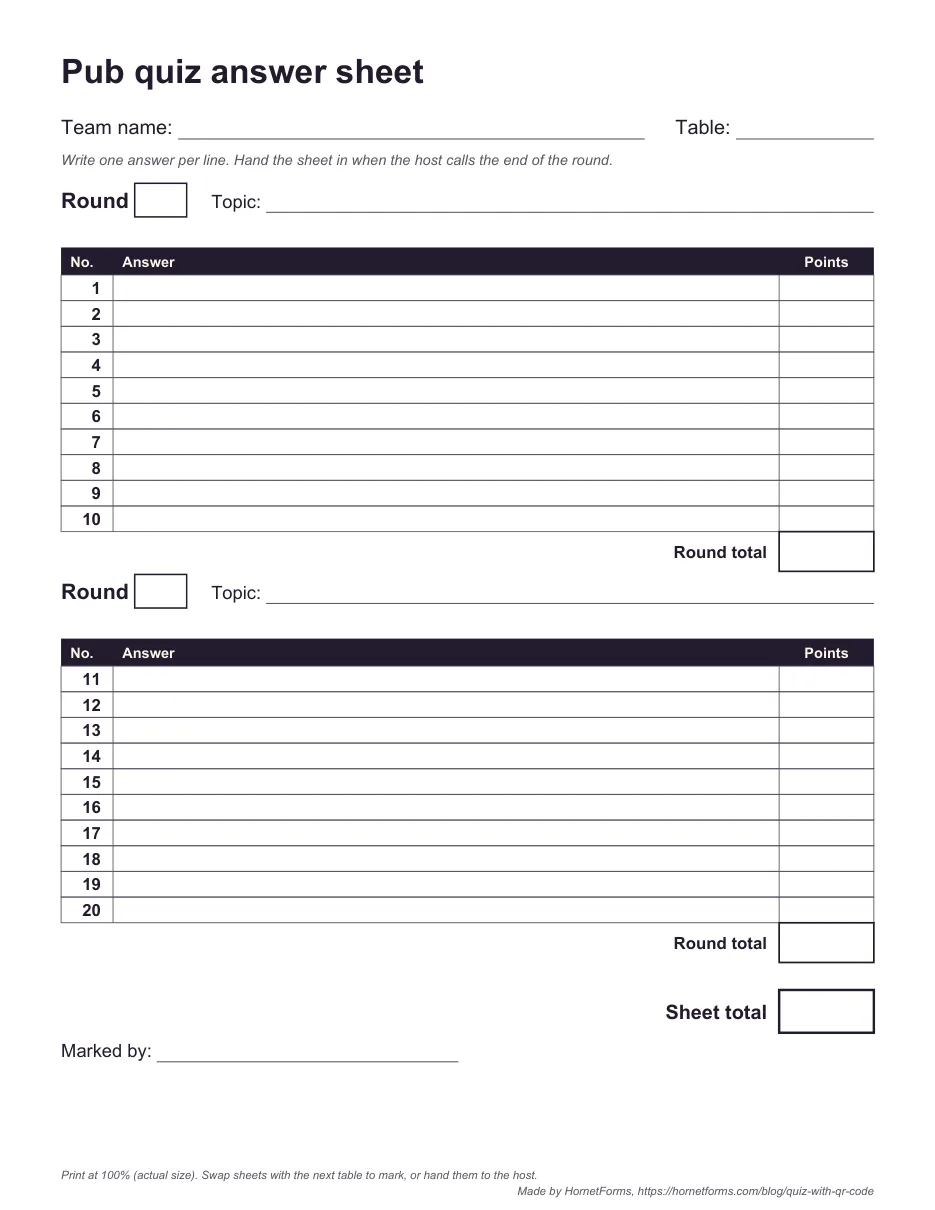
The 20-question answer sheet. The 10-question sheet has one round with taller rows.
Mark paper sheets by hand and add the team's total to your spreadsheet with the rest.
Fundraiser trivia with an entry fee#
Raising money with the quiz? Take the entry fee when teams sign up, before the night. A Payment block on a team sign-up form takes a one-time payment on Stripe's hosted Checkout page, at a fixed price per team. A workspace admin connects your own Stripe account, and the money goes straight to it. Payments work on every plan. Stripe's normal processing fees apply, and HornetForms adds no fee of its own. Unpaid sign-ups wait in an "Awaiting payment" tab. Try the whole form yourself before you share it.
Our event registration form with payment guide walks through a paid sign-up form, and how to collect money for an event compares the ways to take the money. After the night, a few post-event survey questions tell you whether to run it again.
Questions people ask#
Can I make a quiz with a QR code for free?#
Yes. Quiz mode, the QR code download and the one-response-per-person setting are all on the Free plan. See the pricing page for what Pro and Business add.
Do teams need an app or an account?#
No. A phone camera that reads QR codes opens the form in the browser, and people answering a HornetForms form never sign in.
Can teams see their score at the end?#
If you want them to. Pick Show score or Show score and correct answers in the Quiz panel, and the results show below the ending. The features page lists the rest of quiz mode.
Get the free answer sheets and table tent#
- Pub quiz answer sheet, 10 questions: PDF, US Letter or PDF, A4.
- Pub quiz answer sheet, 20 questions (two rounds of 10 and a sheet total): PDF, US Letter or PDF, A4.
- Editable answer sheets: the Word (DOCX) version, US Letter, with the 10-question sheet on page 1 and the 20-question sheet on page 2.
- Quiz night table tent: PDF, US Letter or PDF, A4. The back half prints upside down, so both sides read the right way up once you fold it.
- Editable table tent: the Word (DOCX) version has the front face with the blank QR square, then a "Before quiz night" checklist page.
Run your first quiz with a QR code#
Write 10 questions, mark the answers, set Hide results and print the code on a table tent. Then send one test answer from a chair at the back. That's a quiz with a QR code ready for a trivia night, a training check or a quiz for your clients. Sign up for free and build your trivia night quiz before the first round is due.
QR Code is a registered trademark of DENSO WAVE INCORPORATED.