
On this page
Marking quizzes by hand is fine for five people. At 25 it eats your evening, and you still have to tell each person how they did. A free quiz maker should do that part for you: check every answer against your answer key, add up the points, apply a pass mark and show people their score the moment they submit.
This guide shows how to use HornetForms as a free quiz maker with a real example: a 10-question staff training check, from the first question to the results table. It works the same for a client quiz, a course knowledge check or a trivia round. There's a free quiz planner (Excel) and a sample quiz you can import, so you can skip the blank page.
What a free quiz maker needs to do#
Plenty of tools can put questions on a page. A quiz that grades itself needs a few more parts:
| Part | What it does | Why it matters |
|---|---|---|
| Answer key | Holds the correct answer for each question | Without it, you're still marking by hand |
| Points | Gives each question a weight | A two-part question can be worth more than a yes-or-no |
| Pass mark | Splits people into passed and failed | Training checks and course modules need a clear bar |
| Results screen | Shows the score (and the correct answers, if you want) | People learn more when they see what they missed |
| Sharing | A link, a QR code or an embed | The quiz has to reach people where they are |
| Results table | Stores each person's score and result | You need to see who passed, and which questions tripped people up |
Quizzing itself has research behind it. A review of 10 study techniques in Psychological Science in the Public Interest gave practice testing and spaced-out study the highest overall rating. The journal's publisher sums it up: "Both techniques have been shown to boost students’ performance across many different kinds of tests, and their effectiveness has been repeatedly demonstrated for students of all ages" (Association for Psychological Science, "Which Study Strategies Make the Grade?", January 10, 2013, accessed November 2, 2026). A short quiz is a practice test, and showing the right answers afterward lets people see what they missed.
Build it in HornetForms#
Quiz mode is on every plan, including Free, so HornetForms works as a free quiz maker with an answer key from day one. Here's the whole build on one screen:
- Add your questions. Type them in the editor, import them from a CSV file, or ask the AI for a draft.
- Open Quiz settings. The button sits in the editor header and opens the Quiz panel.
- Mark the correct answers and set the points. You do this on each question in the editor. Each graded question takes 1 point unless you set another whole number.
- Set a pass mark. Pick points or percent, and choose an ending for people who pass and one for people who fail.
- Choose what people see. "Hide results", "Show score", or "Show score and correct answers".
- Publish and share. Send the link, print the QR code or embed the quiz on your site.
Grading happens on our server, so the answer key never reaches the public form.
A worked example: a cafe staff training check#
Our example is a new staff training check for a made-up cafe, "Corner Street Cafe". The answers are that cafe's house rules, which keeps the example simple: a manager knows the right answer to every question. Swap in your own onboarding, safety or product questions and the build is the same.
- List what people must know. Ten things a new barista needs on day one.
- Pick a question type for each. Most are multiple choice. One has several right answers, one is a number and two are short text.
- Write the answer key and points. One point each, and two for the question with several right answers. That makes 11 points.
- Set the bar. A pass mark of 80% means 9 of 11 points, because 8 points is only 72.7%.
- Write the explanations. One or two sentences per question, shown after submitting.
Here are the 10 questions with their types and correct answers:
| Q | Question | Type | Correct answer | Points |
|---|---|---|---|---|
| 1 | A customer says their drink is wrong. What do you do first? | Multiple choice | Apologize and remake it | 1 |
| 2 | Which milk goes in a flat white unless the customer asks for another? | Multiple choice | Whole milk | 1 |
| 3 | Who signs off a refund over $20? | Multiple choice | The shift lead | 1 |
| 4 | Which day do the milk and pastry deliveries arrive? | Multiple choice | Tuesday | 1 |
| 5 | What happens to pastries left at closing? | Multiple choice | Pack them for the food bank pickup | 1 |
| 6 | Where do you log a broken machine? | Multiple choice | The repair book by the till | 1 |
| 7 | Which of these do you do before opening? (Pick all that apply) | Checkboxes | Count the till, turn on the espresso machine, wipe the tables | 2 |
| 8 | How many grams of ground coffee go in a double shot? | Number | 18, within 1 | 1 |
| 9 | What is the guest Wi-Fi network called? | Short text | CornerCafe Guest (or CornerCafe-Guest, CornerCafeGuest) | 1 |
| 10 | What is this month's drink special? | Short text | Maple oat latte (or Maple latte) | 1 |
Want results with no right answers, like "Which coffee are you?" That's a different build with calculated fields and endings. See how to make a personality quiz instead.
Question types that grade#
A useful free quiz maker grades more than multiple choice. You can mark the correct answer on multiple choice, dropdown, checkbox and multi-select questions, and grade short text and number answers too. Each one suits a different kind of question:
- Multiple choice. One right option out of a few. Best for "what do you do first?" questions.
- Dropdown. One right option out of a long list, such as a product name or a department.
- Checkboxes and multi-select. Several right options, such as "Pick all that apply".
- Short text. The person types the answer. You add several accepted answers, with an optional match-case setting. That's why the Wi-Fi question accepts "CornerCafe Guest", "CornerCafe-Guest" and "CornerCafeGuest", and, with match case off, "cornercafe guest" counts too.
- Number. A correct number, exactly or within a tolerance. Question 8 takes 18 within 1, so 17, 18 and 19 all count.
Not sure which to pick for a question? Our guide to every question type and when to use it covers each one in more detail.
Points and scoring#
Points are where a free quiz maker beats a paper answer sheet. Every graded question is worth 1 point until you change it, and you can set a different whole number. Use points to weight what matters most: in a safety check, the fire exit question might be worth 3.
Questions with several right answers work two ways:
- All or nothing (the default). People earn the points only by picking exactly the correct options. In question 7, ticking all three morning jobs earns 2 points. Ticking two of them, or adding "Unlock the back door", earns 0.
- Score each option. Give each option its own score, negative points included. A wrong pick can take a point away, so guessing every box doesn't pay.
The score is the points earned out of the most points possible. Our sample person gets questions 4 and 9 wrong, so they score 9 of 11 points (81.8%).
Set a pass mark and send people to two endings#
A free quiz maker without a pass mark leaves you sorting scores by hand. In the Quiz panel, pick "Percent" or "Points" (or "No pass mark") and type the mark.
Then choose where people go. Send those who pass to one ending and those who fail to another. Each can be a named ending or the default thank-you page. For the training check:
- Passed: "You're ready for your first shift." Add the shift schedule link.
- Failed: "Not quite. Read the handbook and try again."
One detail if your quiz uses logic: a named ending reached by a logic jump still wins over the pass or fail ending.
Good to know: a percent pass mark is a share of the most points possible. On an 11-point quiz, 80% takes 9 points. The free planner works this out for you on its Pass mark tab.
What people see after submitting (and the explanations)#
You choose one of three views in the Quiz panel:
- Hide results. People see only the thank-you page.
- Show score. They see their score below the ending.
- Show score and correct answers. They also see each question's marks, the correct answer and your explanation.
For training, the third one earns its keep.
You can add an explanation to any graded question. Keep it to one or two plain sentences that say why the answer is right. For question 6: "The repair book is what the owner reads each morning. A chat message gets lost." People see explanations only with "Show score and correct answers". If you send people to another page with a redirect, they leave without seeing the results.
Shuffle the answer options#
Turn on "Randomize option order" on a multiple choice, checkbox, dropdown or multi-select question, and each person sees the options in a different order. "Other" always stays last. In the full question settings, "Locked positions" keeps chosen options where they are, such as "None of the above" at the bottom.
Shuffled options grade the same: HornetForms grades the option, not its position or its label. So you can switch shuffling on for every choice question in your quiz.
Let AI draft the quiz#
Looking for a free quiz maker with AI? Ask the AI for a quiz, a test or a knowledge check, and the draft comes back as a quiz with its answer key, ready to check in the editor. Try something like "a 10-question training check for new cafe staff on opening tasks, refunds and drink recipes".
Read every question and answer before you publish. You know your house rules, and the AI doesn't. AI drafts come from a monthly allowance: 3 a month on Free, 30 on Pro and 100 on Business (see the pricing page).
Get the quiz to people#
A free quiz maker only helps once people take the quiz. Take it yourself first (pass it once and fail it once), then share it:
- A link. Paste it in a team chat, an email or a course page. Respondents never need an account to answer.
- A QR code. The Share tab gives you one as a PNG or an SVG. It suits a staff room poster or a slide at the end of a training session. See how to make a QR code for a form for placement tips, or run a whole quiz with a QR code at a trivia night.
- An embed. Put the quiz on your site inline, as a popup, as a slider or full page. An embed shows the published version, so publish your edits before you share.
Coaches and course creators often use a short graded quiz as a lead magnet: "Test your knowledge in 2 minutes." Our lead magnet ideas for coaches post has more ideas like that. (If your team builds quizzes in Google Forms today, we also have a separate guide on how to make a quiz on Google Forms.)
Read the results#
This is where a free quiz maker pays off for a trainer. Every quiz response stores its score, the maximum, the percent and, with a pass mark, "Passed" or "Failed". Open a response and you'll see something like "9 / 11 points (81.8%)".
From there:
- Filter by result. Filter responses by "Quiz result" (passed or failed) or "Quiz percent" in the table and the exports. Who still needs to retake the training check? One filter tells you.
- Spot the hard questions. The Summary tab adds a "Correct answers by question" card, plus "Average score" and "Pass rate" tiles. If only half your new staff get the refund question right, the handbook probably needs a clearer line.
- Export it. The CSV export (every plan) adds "Max score", "Percent" and "Result" columns alongside the quiz's score column. Excel export comes with Pro and Business.
- Hear about new responses. Owner emails start off. You can turn on an email to yourself for each new response.
Running the quiz with a team? On Pro and Business, everyone in the workspace (owner, admin, editor or viewer) can read every response, so plan who you invite.
HornetForms gives you unlimited responses within fair use, so a quiz that every new hire takes for years won't hit a cap. If you've hit one elsewhere, here's what happens when your form hits the response limit on other tools.
Download the quiz planner and sample quiz#
Pair the free quiz maker with the free quiz planner (Excel). It does the planning before you build:
- Questions tab. Up to 30 questions. Type each question, pick one of the six graded types, list the options, the correct answers, a tolerance for number questions, the points, whether to shuffle and the explanation. A Check column flags a correct answer that doesn't match an option, a tolerance on a non-number question and similar slips.
- Pass mark tab. Pick Percent or Points and type the mark. It shows the most points possible and the points needed to pass, and lets you plan both endings and what people see.
- Test run tab. Mark which questions a test taker got right, and it shows the score, the percent, Passed or Failed and the ending they'd see.
It comes filled with the cafe training check as example data, so you can see it work. There's also a planner CSV with the same 10 rows.
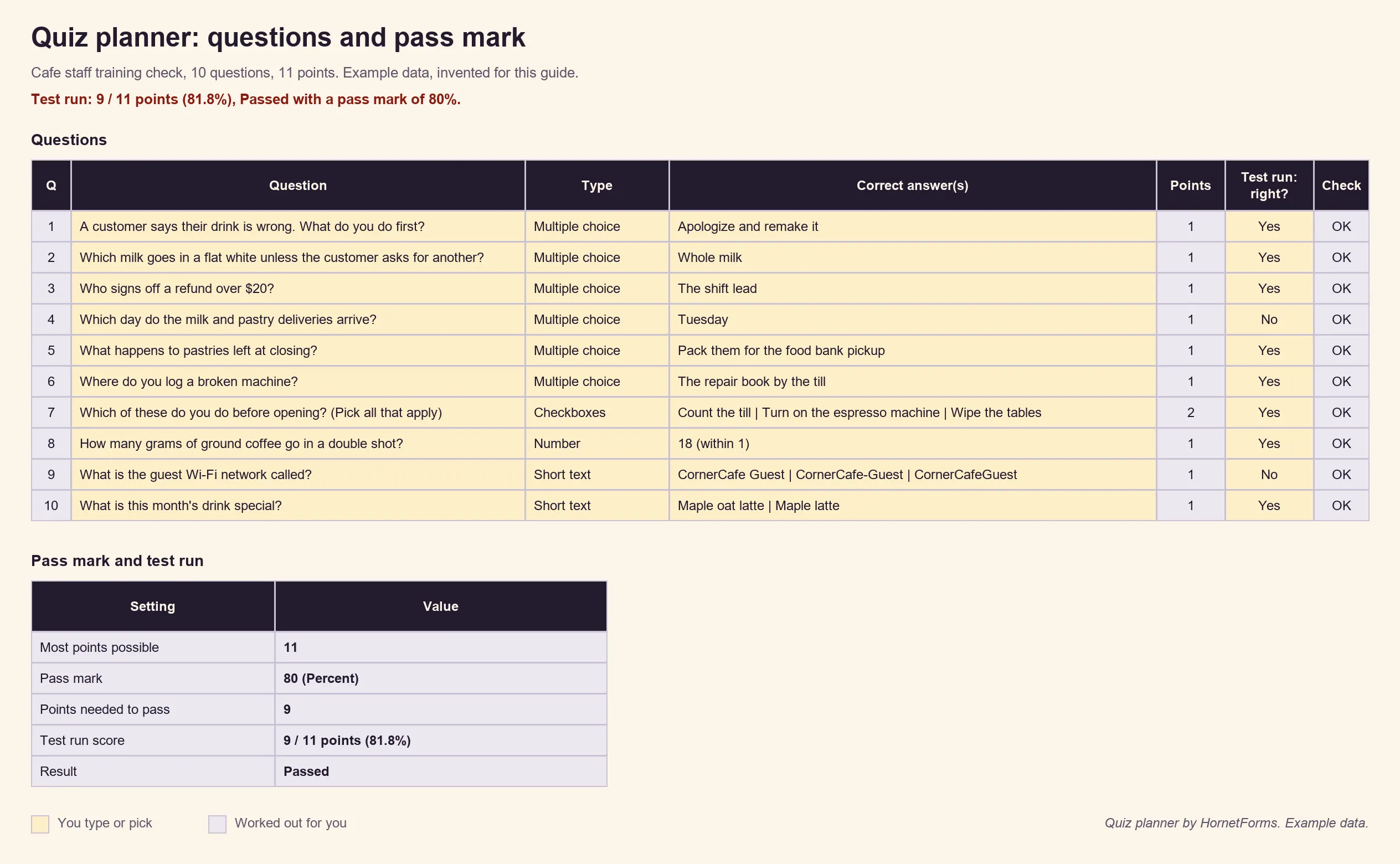
Example data only, invented for this guide.
Want the questions already in place? Download the sample quiz import file (CSV). It holds all 10 training check questions, plus a Your name and a Work email question, with eight example rows. HornetForms' free CSV import turns each column into a question and guesses the type from the example rows: six multiple choice questions, one checkbox question, one number and two short text. The example rows never become responses.
The import brings the questions only, with no answer key. So mark the correct answers in the editor, and add the points and explanations. Then open Quiz settings for the pass mark, the endings and what people see. The planner lists every answer to mark. The import puts 10 questions on each page, so the name and email land on a second page. It also names the form after the file, so rename it to your quiz title.
Your first graded quiz, start to finish#
That's the whole job for a free quiz maker that grades itself. Write the questions, mark the correct answers, set the points and a pass mark, and choose what people see. Take it once yourself, then share the link.
HornetForms is free forever on the Free plan, and quiz mode works on every plan. There's more on the quizzes features page. Whether it's a training check for new hires, a trivia night or a client quiz, Sign up for free and build your first one today.
Google Forms is a trademark of Google LLC. Excel is a trademark of the Microsoft group of companies. QR Code is a registered trademark of DENSO WAVE INCORPORATED. HornetForms is not affiliated with, endorsed by or sponsored by Google or Microsoft.