
On this page
A quiz that marks itself saves you a stack of grading. Teachers use one for a quick check after a lesson. Trainers and HR teams use one to see if new staff took in the handbook. This guide shows how to make a quiz on Google Forms that grades itself: switch on quiz mode, write the answer key, set points, add feedback and pick when people see their grade.
Every Google Forms step below comes from Google's own Docs Editors Help pages, and we quote the button names as Google writes them. We checked those pages on November 2, 2026. Google changes its menus from time to time, so the linked page always has the latest version. Then we build a 10-question staff training check as a worked example, and there's a free answer key and marking sheet at the end.
How to make a quiz on Google Forms in six steps#
Here's the whole job at a glance. The sections below take each step in turn, with Google's own wording.
| Step | What you do | Where it lives in Google Forms |
|---|---|---|
| 1. Quiz mode | Turn a form into a quiz | Settings, Make this a quiz |
| 2. Questions | Add questions that can take an answer key | Add question, then pick the type |
| 3. Answer key and points | Mark the right answers and what each is worth | Answer key on each question |
| 4. Feedback | Explain why an answer is right | Add answer feedback |
| 5. What people see | Pick what shows after they answer, and when grades go out | Settings, Respondent settings, Release grades |
| 6. Publish and grade | Send it, then read and release the results | Publish, Responses |
Build it in HornetForms#
If you'd like to build the same quiz in another tool, here's how it works in HornetForms. Quiz mode is on every plan, including Free.
- Turn it on. Click Quiz settings in the editor header. The Quiz panel lets you "Grade answers, set a pass mark and choose what respondents see after submitting."
- Mark the right answers. Mark the correct answer on multiple choice, dropdown, checkbox and multi-select questions, and grade short text and number answers too.
- Set the points. Each question takes a whole number of points from 0 to 1,000. Checkbox and multi-select questions are all or nothing, or you can score each option, negative points included.
- Accept more than one wording. Short text answers take several accepted answers, with an optional match-case setting. Number answers take a correct number, exactly or within a tolerance (for example 3.14 within 0.01).
- Explain the answer. Add an explanation of up to 1,000 characters to any graded question.
- Set a pass mark. Use points or percent, and send people who pass and people who fail to different endings.
- Choose what people see. Pick "Hide results", "Show score" or "Show score and correct answers". Explanations show with the last one.
- Mix up the options. Turn on "Randomize option order" to shuffle a question's options for each respondent. Shuffled options grade the same, because grading uses the option, not its position.
HornetForms grades each quiz on its server, so the answer key never reaches the public form. The Summary tab adds a "Correct answers by question" card with "Average score" and "Pass rate" tiles. Short on time? Ask the AI builder for a quiz, test or knowledge check. The draft comes back as a quiz with its answer key, ready for you to check in the editor. AI drafts come from your monthly allowance of AI generations, and Free includes 3 a month. The quiz features page has the rest, and our free quiz maker guide covers picking a tool.
Step 1: turn the form into a quiz#
Google's help page starts with a shortcut: "The quickest way to create a quiz is to go to g.co/createaquiz." To turn a form you already have into a quiz, Google's steps are: "Open a form in Google Forms. At the top of the form, click Settings. Turn on Make this a quiz" (Create & grade quizzes with Google Forms, checked November 2, 2026).
On the same screen, Google lists an optional step to collect email addresses. Decide on this now. Google's page says that "If you collect email addresses, you can assign points and leave feedback on individual responses." Email addresses also let you send results later (step 5).
Step 2: add questions that can take an answer key#
The question type matters when you work out how to make a quiz on Google Forms, because not every type grades itself. Google's help page says: "You can make an answer key on certain question types," and lists six:
- Short answer
- Multiple choice
- Checkboxes
- Dropdown
- Multiple choice grid
- Checkbox grid
To add a question, Google says to "click Add question," then fill out your question and answers. Google adds a note: "You can assign points and add feedback on all question types." So you can still ask a Paragraph question for a longer answer and score it yourself later. If you're unsure which type fits a question, our guide to every question type and when to use it walks through each one.
Step 3: make the answer key and set points#
This is the heart of how to make a quiz on Google Forms that grades itself. Google's steps for each question (Create & grade quizzes with Google Forms, checked November 2, 2026):
- "In the bottom left of the question, click Answer key."
- "Choose the answer or answers that are correct."
- "In the top right of the question, choose how many points the question is worth."
Write the key on paper first. It's easy to click the wrong option in a long quiz, and a wrong key marks everyone down. For short answer questions, list every spelling you'll accept.
Step 4: add feedback to the answers#
Feedback turns a score into something people learn from. Google's page says: "To add a written or YouTube video explanation to an answer, click Add answer feedback." Keep each explanation to one line that says why the answer is right, like "The store manager holds the spare till key." People take one line in. They skip a paragraph.
Step 5: choose what people see and when grades go out#
Google's page says: "You can choose if people can see missed questions, correct answers, and point values." To change them: "At the top of the quiz, click Settings. Under 'Respondent settings,' change settings as needed."
Then decide when grades go out. Google's page says that by default "Grades will release immediately" and "Email addresses won't be collected." Under "Release grades," you pick one of two options:
- Immediately after each submission. People see their result as soon as they finish.
- Later, after manual review. You check the answers first, then send results. Google says that "If you collect email addresses in your form, you can send results immediately or wait until you're ready to share them."
Pick "Later" when the quiz has short answer questions. Then you can check answers written in other words before anyone sees a grade.
Step 6: publish and send the quiz#
Publishing comes first on Google's current help page: "When you publish a form, responders can access it. If the form is unpublished, responders with the link can't access it." The step is: "At the top right, click Publish." Once you publish it, click Published, then Copy responder link to get the link (Publish & share your form with responders, checked November 2, 2026).
If you use Google Forms through a work or school account and want people outside it to answer, Google's quiz page says: "Under 'Responses,' turn off Restrict to users in [your domain] and its trusted organizations." For a quiz on a poster or a classroom wall, our guide to making a QR code for a form covers the steps, and our guide to running a quiz with a QR code covers trivia nights and events. The general sending options (email, embed, link) are in our guide on how to make a Google Form.
A worked example: a 10-question staff training check#
Here's how to make a quiz on Google Forms for a real job: a check for new staff at a bike shop after their first week. The shop and its rules are made up for the example. Ten questions, 12 points, about five minutes to answer.
| No. | Question | Google Forms type | Answer key | Points |
|---|---|---|---|---|
| 1 | What time does the shop open on Saturdays? | Multiple choice | 9:00 | 1 |
| 2 | Who do you call if the till won't open? | Dropdown | Store manager | 1 |
| 3 | Which three checks happen before a test ride? | Checkboxes | Take a photo ID, check the brakes, check the tire pressure | 2 |
| 4 | What's the name of the repair booking book? | Short answer | Workshop book | 1 |
| 5 | How many days do customers have to return an unused item? | Short answer | 30 | 1 |
| 6 | A customer's repair is ready. What do you do first? | Multiple choice | Text the customer | 1 |
| 7 | Which two tasks are on the closing checklist? | Checkboxes | Count the till, lock the side door | 2 |
| 8 | Which day is the workshop closed? | Dropdown | Monday | 1 |
| 9 | What's the customer Wi-Fi network called? | Short answer | ShopGuest | 1 |
| 10 | Where do you log a damaged item? | Multiple choice | The damage log by the till | 1 |
A few choices behind it:
- Checkbox questions are worth more. Questions 3 and 7 ask for several right answers, so they carry 2 points.
- Short answers stay short. A name, a number or a network name has one clear answer. "Describe how you greet a customer" doesn't, so leave that kind of question ungraded.
- Every question gets feedback. The answer key sheet below has the one-line explanation for each.
- Decide the pass mark before anyone answers. We'd call 10 of 12 a pass. Write it on the sheet so the bar doesn't move later.
No right answers in your quiz, just a result for each type of person? That's a different build: see how to make a personality quiz.
Grade the quiz and read the results#
The last part of how to make a quiz on Google Forms is reading what comes back. Once answers come in, Google's quiz page says: "You can see automatic summaries for all quiz responses, including":
- Frequently missed questions
- Graphs marked with correct answers
- Average, median, and range of scores
To see them, open the quiz, click Responses at the top, then Summary (Create & grade quizzes with Google Forms, checked November 2, 2026).
Two more views help with marking by hand:
- Individual. Under Responses, click Individual to step through people one at a time. Google's page says that if you collect email addresses, you can enter the points a response earned, click Add feedback and then Save.
- Question. Under Responses, click Question to mark a group of answers at once with Mark correct or Mark incorrect. This is the quick way to accept a right answer someone wrote in their own words.
If you chose "Later, after manual review," release the grades when you're done. Google's steps: click Responses, then Individual. "At the top right of a response with a recorded email address, click Release score." Tick the people you want to email, then "Click Send emails and release."
Want the numbers in a spreadsheet? From Responses, click Link to Sheets (View & manage form responses, checked November 2, 2026). Our guide on how to analyze survey data shows how to average and chart a column.
Good to know: A question most people miss is either a gap in the teaching or a confusing question. Read it again before you mark the people down. The question review page in the sheet below is built for exactly that check.
Free quiz answer key and marking sheet#
The free quiz answer key and marking sheet (PDF, US Letter) is the paper side of how to make a quiz on Google Forms. Also in A4 PDF and as an editable Word file.
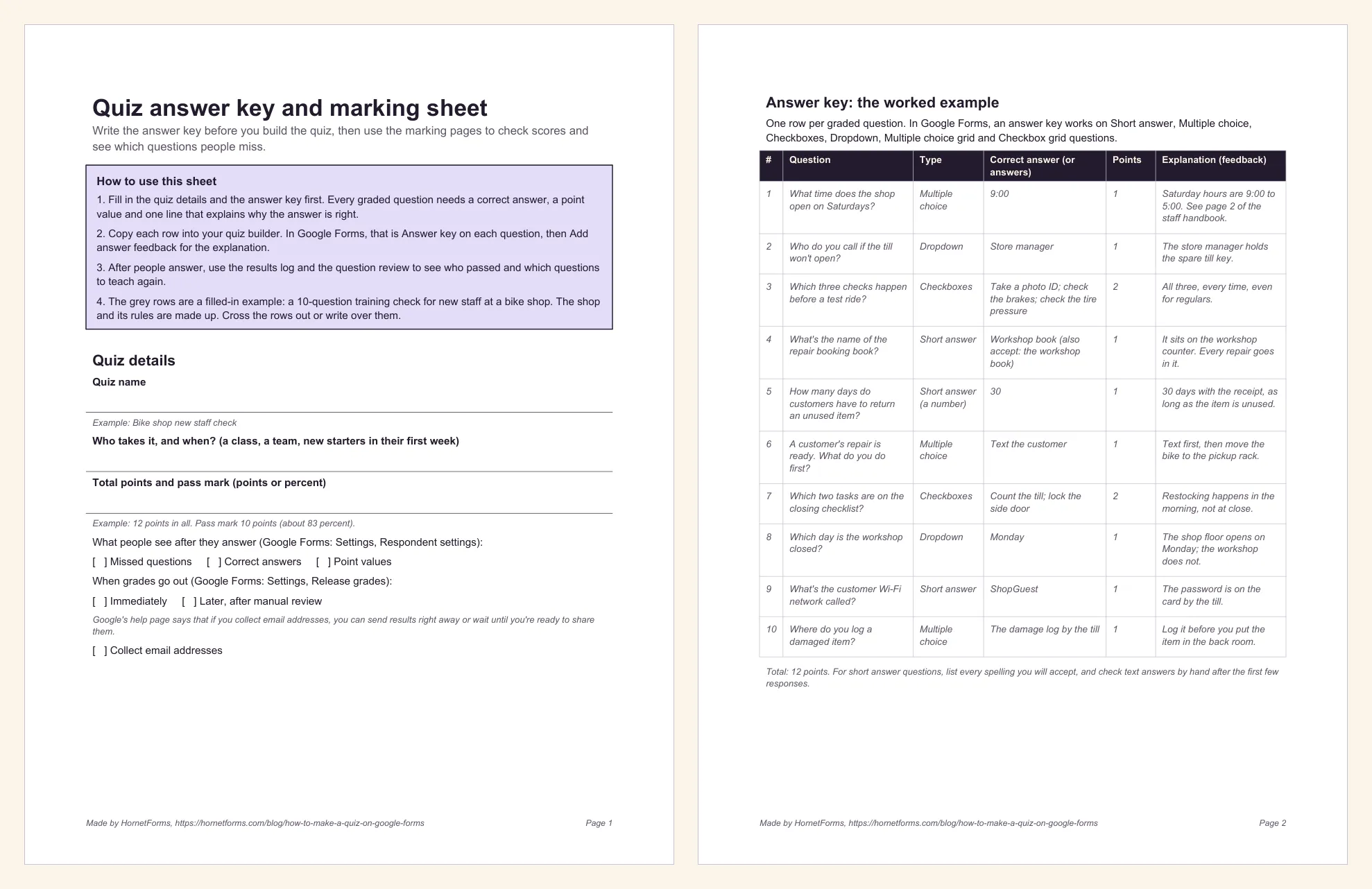
Six pages, the same in both sizes:
- Quiz details: the quiz name, who takes it, total points and pass mark, plus tick boxes for what people see and when grades go out.
- Answer key, worked example: the 10 bike shop questions above, each with its correct answer, points and a one-line explanation.
- Answer key, your quiz: 15 blank rows with the same columns: question, type, correct answer, points and explanation.
- Results log: one row per person for score, total, percent, passed and a follow-up note.
- Question review: how many answered each question, how many got it right, the percent correct and what to teach again.
- Text answers to check by hand, plus a seven-point check to run before you send the quiz.
Grey rows show the worked example. Fill in the key before you build, and the build takes minutes.
Try it on your next training check#
Now you know how to make a quiz on Google Forms that grades itself: turn on quiz mode, write the answer key, set points, add feedback and choose when grades go out. Start from the answer key sheet and the rest is copying rows. If you'd like to build your next staff training check with a pass mark and pass or fail endings, sign up for free and try quiz mode in HornetForms. Every plan includes unlimited responses within fair use. Our Google Forms vs HornetForms post compares the two job by job, Typeform vs Google Forms covers that pairing, and the pricing page lists every plan.
Google Forms and Google Sheets are trademarks of Google LLC. HornetForms is not affiliated with, endorsed by or sponsored by Google. Steps quoted from Google Docs Editors Help, checked November 2, 2026.