
On this page
You've built the form. People can sign up for the workshop, order the cake or join the club. Now you need the money too, and you'd like it in the same step. So you search for a Google Form with payment, and you find a dozen workarounds that all sound a little different.
This guide sorts them out. It starts with what Google's own help pages describe, then covers the four ways people add payment to a Google Form, what each one means for you and for the person paying, and a simpler route where the form takes the payment itself. Every Google step below comes from Google's Docs Editors Help pages or the Google Workspace Marketplace, checked November 2, 2026. Google changes its menus from time to time, so the linked page always has the latest version.
Can a Google Form take payment?#
Google's question types page lists what you can add to a form: short answer, paragraph, multiple choice, checkboxes, dropdown, file upload, linear scale, rating, multiple choice grid, checkbox grid, date and time (Choose a type of question for your form, checked November 2, 2026). The help pages we checked describe no payment question among them.
What Google does describe is a way to add more: "You can use add-ons to do more with Google Docs, Sheets, Slides, and Forms" (Use add-ons, Apps Script, AppSheet & Data Studio, checked November 2, 2026). So a Google Form with payment usually means one of two things. Either the form sends people somewhere else to pay, or an add-on from the Google Workspace Marketplace adds a payment step.
Build it in HornetForms (the simpler one)#
If you'd rather skip the Google Form with payment workarounds and keep the payment inside the form, here's the short version in HornetForms. Payments work on every plan, Free included:
- Connect Stripe once. A workspace admin connects your own Stripe account. The money goes straight to it, and you are the merchant of record.
- Build the form. Start from a template, write it yourself, or let the AI draft it from a description.
- Add a Payment block. It takes a one-time payment on Stripe's hosted Checkout page.
- Set the price. Charge a fixed price, or a price calculated from the answers, in one of 25 supported currencies.
- Publish and share. Send the link, print the QR code or embed the form on your site. People never need an account or a sign-in to answer.
HornetForms adds no fee of its own. Stripe's normal processing fees apply. The section "A form that takes the payment itself" below shows what happens after someone pays.
4 ways to add payment to a Google Form#
Here's how to add payment to a Google Form with the tools Google's pages describe, from the quickest Google Form with payment option to the most involved. None of them is wrong. They differ in when people pay and in how much matching you do afterwards.
1. A payment link in the confirmation message#
This is the quickest Google Form with payment link setup. You create a payment link with your card processor or payment app, then paste it into the message people see after they submit.
Google's steps: "Open a form in Google Forms. At the top of the form, click Settings." Next to "Presentation," click the Down arrow. Then, next to "Confirmation message," click Edit, enter your message and click Save. Google's page sums it up: "You can customize the message people get after they submit the form" (Publish & share your form with responders, checked November 2, 2026).
Submit the form once yourself and check that the link works. People pay after they've answered, so some will close the tab first.
2. A link or QR code inside the form#
You can also put the payment link, or a QR code that opens it, in the form itself. Every question can carry a description. Google's steps: to add the "Description" field, click More, then Description (Choose a type of question for your form, checked November 2, 2026). A form can hold "up to 300 pieces of content, like questions, descriptions, images, and videos" (Edit your form, checked November 2, 2026), so a QR code image fits too.
People pay in another tab or on their phone, then come back to finish. Add a short answer question like "Name or note you used on the payment" so you can match them up later. If you're printing the code for a flyer instead, our guide to a QR code for a form covers where to put it and how to test it.
3. Collect first, then follow up yourself#
Some organizers take the answers first and ask for money afterwards. That works well when the price depends on a conversation, or when you confirm a place before anyone pays.
Google's pages give you the pieces. Under "Collect email addresses," choose Verified or Responder input. To get an email for each answer: "At the top of the form, click Responses. Click More. Click Get email notifications for new responses." To keep a list, "At the top right, click Link to Sheets" (View & manage form responses, checked November 2, 2026). Then you send each person your own message with the amount and a payment link.
4. A Google Workspace Marketplace add-on#
An add-on can put a payment step into the form, often with a price worked out from the answers. Google's steps for Forms: "On your computer, open a form. At the top right, click More. Click Add-ons." Then click the add-on for a full description, and click Install, then Continue. Google adds: "For most add-ons, a message will appear requesting access to data that the add-on needs to work. Read the message, then click Allow" (Use add-ons, Apps Script, AppSheet & Data Studio, checked November 2, 2026).
On the Google Workspace Marketplace, a search can be narrowed with "Works with" set to Forms and a price filter of "Free of charge" or "Paid." The results page also notes: "Google doesn't verify reviews or ratings" (checked November 2, 2026). So read each add-on's own pricing and data access before you install it, and check which payment providers it supports.
What each way means for you and the payer#
The real cost of a Google Form with payment is the matching. Here's who does what, way by way.
| Way | When people pay | How you check who paid | What you match by hand |
|---|---|---|---|
| Link in the confirmation message | After they submit | Your payment provider's records | Every payment against every response |
| Link or QR code in the form | While they answer, in another tab | Your payment provider's records, plus the note they typed | Every payment against the note |
| Collect, then follow up | When your message reaches them | Your payment provider's records | Every payment, plus who still owes you |
| Marketplace add-on | Depends on the add-on | Depends on the add-on | Read its description before you count on it |
| A form that takes the payment | Before the response counts as finished | The response itself shows the payment status | Refunds and disputes, in your Stripe Dashboard |
For the payer, the first three ways mean two steps in two places. They answer your form, then pay in a different app, and they type the amount or the note themselves. A mistyped note is your problem to fix later. For you, a Google order form with payment or a Google registration form with payment built this way means a spreadsheet of answers on one side and a list of payments on the other.
Good to know: If the amount changes with the answers (two seats, a larger cake, an extra session), work out the total before you send people to pay. Our guide can Google Forms calculate totals covers what Google's pages describe and a form that adds up as people answer.
A form that takes the payment itself#
This is the simpler one from the top of the post. In HornetForms, the Payment block takes a one-time payment on Stripe's hosted Checkout page, after people click Submit. HornetForms never sees or stores card data, because people pay on Stripe's own page.
Set the price from the answers#
Charge a fixed price, or a price calculated from the answers. A calculated field can add, subtract, multiply or divide answers, for example the number of guests times a price. You can even show the running total in a question label before Submit, so nobody is surprised at Checkout. Our guide to logic, piping and calculations walks through rules like these.
Need a free option too? Hide the Payment block with logic when no payment is due, or set the price to 0, and the form completes normally.
What happens after someone pays#
- Unpaid responses wait. They sit in an "Awaiting payment" tab, away from your main list.
- Nothing fires early. Emails, webhooks and integrations fire only after the payment goes through. You can turn on an email to yourself for each new response.
- Places stay honest. Set a response limit, and a pending payment holds a place under it, so payers on the Checkout page can't oversell your form.
- Refunds stay in Stripe. Handle refunds and disputes in your own Stripe Dashboard. HornetForms shows their status on the response.
- Your own page next. Set a redirect URL, and Stripe returns people through HornetForms to your page.
The CSV export (every plan) and the PDF export include payment columns: status, amount, currency, refunded amount, paid at and the Stripe payment ID. The Excel export (Pro and Business) carries them too. The form also works embedded on your website: with the embed script, the whole page goes to Stripe for the payment step.
So if you came looking for a Google Form with Stripe payment, HornetForms sends people to Stripe's hosted Checkout, with the form and the payment in one place. Paid events get their own walk-through in our event registration form with payment guide, and service businesses can see how to ask a client for a deposit with the same block.
Move a Google Form across#
If your Google Form with payment link has outgrown the matching, you don't need to start from nothing. Two ways to bring a form over:
- Rebuild it. Most payment forms are short. Open a template close to yours, swap in your questions and add the Payment block.
- AI import from a PDF or Word (.docx) file. If your questions live in a PDF or a Word document, upload it and the AI rebuilds it as a form for you to review. Each file uses one AI generation from your monthly allowance, up to 10 MB.
Then add the Payment block, set the price and send yourself through the form once before you share the link. Our Google Forms vs HornetForms post compares the two tools job by job, and the pricing page lists what each plan includes.
Which to pick#
If a handful of friends are splitting the cost of a cabin, a Google Form with payment link in the confirmation message is plenty, and you can check five payments in a minute. Once you're matching dozens of payments, the follow-up and the matching start to eat your evenings. Then pick a setup where the payment and the response arrive together: a Marketplace add-on you've read up on, or a form that takes the payment itself. Still weighing it up? Our guides on how to collect money for an event and on building a pre-order form go further.
Get the payment options checklist (free PDF)#
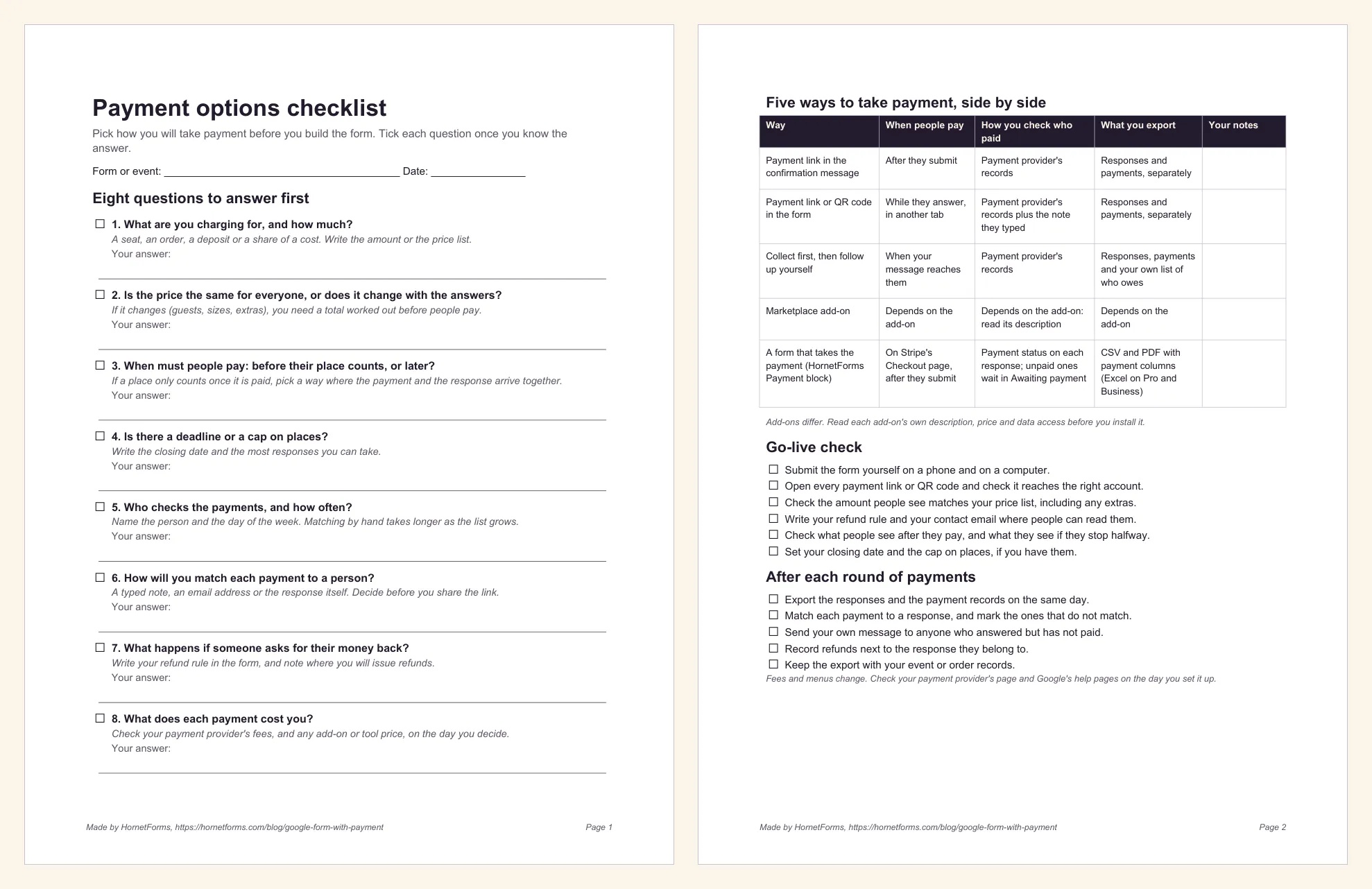
The payment options checklist (PDF, US Letter) helps you pick a route before you build a Google Form with payment or any other paid form. It's also in A4 PDF.
Inside you'll find:
- Eight questions to answer first: what you're charging for, fixed or changing price, deadline and cap, refunds, and who checks the payments.
- The five ways side by side: when people pay, how you check who paid and what you export, with a notes column for your own setup.
- A go-live check: six things to test before you share the link.
- After each round of payments: what to export, match and fix.
The small print#
Google Forms, Google Sheets, Google Workspace and Google Workspace Marketplace are trademarks of Google LLC. Stripe is a trademark of Stripe, Inc. HornetForms is not affiliated with, endorsed by or sponsored by Google. Every Google step above comes from Google Docs Editors Help and the Google Workspace Marketplace as of November 2, 2026; for current details, check Google's help pages. For the full Google Forms build, see how to make a Google Form.
Take your next payment in one step#
A Google Form with payment works fine for a small group. When you're running a paid workshop, a class or an order form, one form that collects the answers and the money saves you the matching. Pick your route on the checklist first. Sign up for free to build your paid workshop or order form in HornetForms.