
On this page
You have a new product, a holiday bake or a small run of prints, and you don't want to make 200 and sell 40. A pre-order form flips that around. People tell you what they want, pay up front, and you make only what people ordered.
This guide shows how to build a pre-order form that works out the total, takes the payment, caps the number of orders and closes on your deadline. It covers the questions to ask, the one catch with response limits, and the date promise you should keep. At the end there's a free printable pre-order form and a pre-order tracker for pickup day.
When a pre-order form beats a store#
An online store is great when you have stock on a shelf. A pre-order form is better when you don't, yet:
- Testing demand. Before you order 500 units of a new design, see whether 50 people will pay for one. Money is a much stronger signal than "I'd buy that" on a poll.
- Small batches. A baker with 40 loaves on Saturday, a potter with one kiln load or a print run of 100 copies. You know your limit, and you want it filled before you start.
- Local food and pickup. Many pre order forms for food are simple: what, how many, which pickup slot.
- Seasonal drops. Holiday boxes, back-to-school bundles and event merch all have a cut-off date.
If you only want names and emails before launch, with no money yet, a waitlist form template fits better. A pre-order form is for when you're ready to take the money. Taking one-off custom orders, like birthday cakes? A cake order form fits that job better.
Build it in HornetForms#
- Start from the Order request template (its page is
forms.hornetforms.com/templates/order-request). It shows a rough estimate on its thank-you screen but collects no payment, so you'll add that part. - Match its questions to the list below, and set Min and Max on "How many?".
- Add a calculated field called
totaland set your prices with logic rules. - Add a Payment block and set its price to come from
total. People pay once, on Stripe's hosted Checkout page. - In the form's settings, set a response limit and a close date, and write your own closed-form message.
- Rewrite the thank-you screen, and turn on the confirmation email with the total in it.
- Share the link, then export the CSV into the free pre-order tracker.
Payments work on every plan, including Free. You connect your own Stripe account, the money goes straight to it and you're the merchant of record. Stripe's normal processing fees apply, and HornetForms adds no fee of its own. The pricing page lists what each plan includes.
What to ask on a pre-order form#
Keep it short: every extra question is one more reason to close the tab before paying. This is the set we suggest:
| Question | Type | Why it's there |
|---|---|---|
| Name | Short text, required | For the handover list |
| Email, required | Where the confirmation goes | |
| Phone | Phone, optional | Only if you need to check a detail |
| Product | Dropdown, required | Sets the price |
| Option | Multiple choice | Flavor, size or color, so you know what to make |
| How many? | Number, required, Min 1, Max 4, whole numbers only | Feeds the total and caps a single order |
| Pickup or delivery? | Multiple choice, required | Adds a delivery fee if you offer one |
| Delivery address | Long text, shown only for delivery | Where to take it |
| Anything else we should know? | Long text, optional | Gift notes, gate codes, the best time to call |
Rename the template's questions to match, delete the ones a pre-order doesn't need (you set the date, not the customer), and add any missing ones with the / menu. Want to check a type first? Here's which question type to pick. Use a show rule so "Delivery address" appears only when someone picks delivery.
Number questions take Min and Max values and a "Whole numbers only" switch, checked when someone submits. The Max does real work here: it stops one person from ordering half the batch.
Work out the total and take payment#
A calculated field never shows to the customer, and it holds the amount you'll charge. Add one called total after the "Pickup or delivery?" question, because rules only see answers that come before the field. Then add calculate rules in the logic editor:
Product is "Sourdough loaf"                → set total to 8, multiply total by How many?
Product is "Box of 6 cinnamon rolls"       → set total to 18, multiply total by How many?
Pickup or delivery? is "Please deliver it" → add 5 to total
So three loaves delivered come to 29. These are sample prices, so swap in your own. Rules run in the order you added them, which is why the delivery rule sits last. This replaces the template's rough estimate. Our logic, piping and calculations guide walks through rules like these. Coming from Google Forms? See can Google Forms calculate totals.
Want people to see the total before they pay? Pipe total into a text line on the last page, like "Your total is $29". The value updates as they change their answers.
Then add the Payment block at the end of the last page, set the price to come from the calculated field total rather than a fixed amount, and pick your currency.
A workspace admin connects Stripe once. HornetForms never sees or stores card data, because people pay on Stripe's own page. Until someone finishes paying, their order waits in an Awaiting payment tab, away from your main list. Emails, webhooks and integrations fire only after the payment goes through.
If a pre-order falls through, handle the refund in your own Stripe Dashboard, and HornetForms shows the refund status on the response. Payments in HornetForms launched in October 2026, so run one real order through your form before you share it.
Taking a deposit rather than the full price? The same Payment block works with a smaller amount, and our guide on how to ask a client for a deposit has wording to copy.
Cap the batch with a response limit#
Your batch has a size. The response limit closes the form when it reaches your number, on every plan. While someone is on the Stripe page, their pending payment holds a place under the limit.
Here's the catch: the limit counts orders, not items. It counts replies, not people, and every finished response uses a place. One order of four loaves and one order of one loaf both count as one. So pick the limit from your batch and your Max:
- Never over, even if everyone orders the most: divide the batch by the Max. With 40 loaves and a Max of 4, cap the form at 10 orders.
- A realistic cap: if most people order two, about 20 orders fill 40 loaves. Watch the tracker as orders come in and lower the limit if the items run low.
The pre-order tracker below does this division for you, per product. If each product has its own batch size, run one pre-order form per product, so each form has its own limit. For first come, first served rules in general, see our guide to a first come, first serve sign-up form.
Close pre-orders on a date#
Most pre-orders have a cut-off: the day you start baking, or the day you place the order with your printer. Set a close date in the settings. It's a date and a time, in your browser's time zone, so "Thursday at 8 pm" works. Want everyone to start at the same moment, like a drop? Set a scheduled opening date and visitors see a notice until then.
When the form closes or fills up, people see your own closed-form message, up to 500 characters. It's plain text, with line breaks but no links or buttons. So write the next step in words:
Pre-orders for this batch are closed. Thank you!
The next batch opens Monday at 9 am. Same link.
If people ask about a form that filled early, our post on what happens when a form hits its response limit explains why a cap you set yourself is a good thing.
Send a confirmation with the total#
Rewrite the thank-you screen first. The template's rough estimate no longer fits once people pay. Type @ in the text to pipe total in:
Thanks, your pre-order is in! You paid $29.
Pickup: Saturday, 10 am to 1 pm, at the market stall.
Then turn on the confirmation email to respondents and pick the Email question that holds the address. Write your own subject (up to 200 characters) and body (up to 5,000 characters), with **bold** text and links written as [text](url). The email can insert the form title, the Submission ID and number calculations such as total, so "You paid $29" works. Unless the person verified their email with a code (Pro and Business), it can't insert their other answers, so put the pickup details in your own text. The email goes out only after the payment goes through.
For yourself, you can turn on an email to yourself for each new response. It's off by default.
Promise a pickup or ship date you can keep#
A pre-order is a promise. If you ship orders, the US Federal Trade Commission has a rule for it. Its business guide says the rule "applies to most goods a customer orders from the seller by mail, telephone, fax, or on the Internet" (FTC, Business Guide to the Mail, Internet, or Telephone Order Merchandise Rule, checked November 2, 2026).
The guide sums up the core of it like this:
- You "must have a reasonable basis for stating or implying that you can ship within a certain time."
- "If you make no shipment statement, you must have a reasonable basis for believing that you can ship within 30 days." The guide adds that direct marketers sometimes call this the "30-day Rule."
- "If you decide you can ship the order later, you must seek the customer's consent to the delay."
- If the customer cancels, "you must, without being asked, promptly refund all the money the customer paid you for the unshipped merchandise."
So state a date on the form, pick one you can hit, and tell people early if it slips. The printable form's "Our promise on dates" box has wording you can reuse: people can wait for the new date or get all their money back. This is a summary, not legal advice. Read the guide or ask your adviser about your own case. Selling food you make at home? Check your state's rules too.
Track pre-orders and fulfill them#
On pickup day the question is who gets what. Export your responses as CSV from the Responses page. The CSV carries the payment columns (status, amount, currency, refunded amount, paid at and Stripe payment ID), so use it rather than a Google Sheets sync, which gets the answers only. You can send responses to Google Sheets too, if you want a live copy of the orders.
The free pre-order tracker opens in Excel and Google Sheets. Paste the CSV on the Orders tab, then type your products and batch sizes on the Batch tab. It finds columns by their names, so if you named a question differently, change that name on the Lists tab. The sheet does the counting:
- Batch shows, per product, the orders, items holding a place, items paid, items left and a status like "Open: 27 left". It also works out how many orders fit if everyone orders the most, items per option, and the orders and deliveries still to hand over.
- Money totals each payment status and works out what you've collected, minus refunds, before Stripe's fees.
- Handover lists every order that holds a place, A to Z, with product, option, how many, pickup or delivery, the address and payment status. Print it for pickup day.
- Orders has yellow Cancelled, Fulfilled and Notes columns. Type Y in Fulfilled as each order goes out.
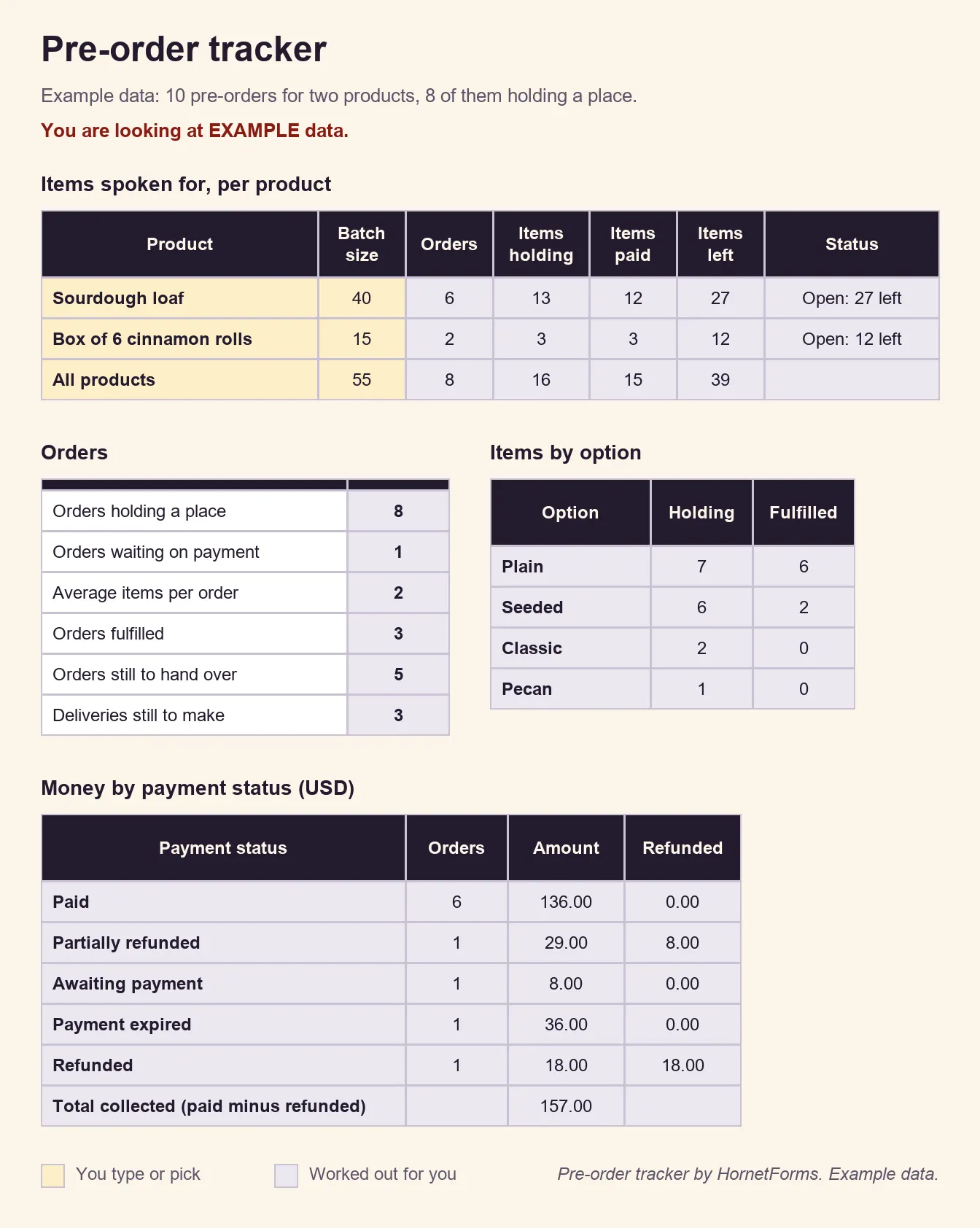
EXAMPLE data only. The names, products, prices and batch sizes are samples, so clear the example rows and paste your own export.
Taking orders by hand as well? The CSV version is a blank list in plain columns: order date, name, email or phone, product, option, how many, total, paid status, pickup or delivery, delivery address, fulfilled and a note.
Get the free pre-order form template#
There are two ways to use the pre-order form template:
- Online. Open the Order request template at
forms.hornetforms.com/templates/order-request, press Use this template, and make the changes above. Our order form template page shows it as it comes. - On paper. For a market table, a shop counter or phone orders, download the PDF, US Letter, the PDF, A4 or the Word (DOCX) version to add your own products and prices. Pages one and two are a pre-order form for one customer. They have a product table, pickup or delivery, how they paid, the date promise box and a "For us" box for you. Page three is a pre-order list with 15 numbered lines and Paid and Done boxes, for taking many orders at a table.
To spread the link, each form gets a QR code (PNG or SVG) for your stall sign or packaging, and a custom slug people can type. On the Free plan, the form shows a small "Made with HornetForms" badge; Pro and Business can remove it. The features page has the rest.
Open your first pre-order this week#
Pick one product and one batch size, write the pickup date on the form and keep the tracker open as orders come in. Sign up for free and open pre-orders for your next batch today.