
On this page
You have 20 seats, 60 interested people and one rule: whoever signs up first gets in. A first come, first serve sign-up form runs that rule for you. It opens at a set time, counts the sign-ups and closes itself when the last spot goes. Nobody has to sit by an inbox at midnight.
This guide covers the rules to write down, the settings that do the work, what people see when it's full and a waitlist for everyone else. At the end there's a free printable sign-up sheet and a waitlist tracker.
What first come, first served means on a form#
On a paper sheet, the first name written down gets spot 1. On a form, the order is the order the responses arrive. People only call it fair when they know the rules before they start, so put them in the form's intro text:
- When sign-ups open: the date, the time and the time zone.
- How many spots there are.
- Who counts as one sign-up: one person, one family or one team.
- What happens when it's full: usually a waitlist.
- How you'll confirm: an email, a text or a call from you.
A rule written down before the rush beats three upset emails after it.
Pick your cap: seats, time or budget#
Your cap is the number of responses the form accepts. Work it out from whatever runs out first:
- Seats: the room holds 30 chairs, so the cap is 30.
- Time: three hours of 15-minute meetings is 12 slots.
- Budget: you have 40 free kits to hand out, so the cap is 40.
One catch matters most. In HornetForms, the response limit counts replies, not people. Every finished response uses a place, whatever its answers. If one response can sign up a family of four, a limit of 20 could mean 80 people in the room. For head counts, keep it to one person per response.
Running several sessions? The limit covers the whole form, so make one form per session. Build the first one, duplicate it, then change the title, the date and the cap. A workshop registration form template gives you a starting point for each session.
Build a first come, first serve sign-up form in HornetForms#
Open your form's Settings, then Responses. Four settings do the work.
Open at a set time so everyone starts together#
Turn on Open on a date and pick the date and time sign-ups start. Until then, visitors see a notice instead of the form. Share the link early: everyone still gets the same start.
Cap and close it automatically#
- Limit responses: type your cap. The form closes after that many responses.
- Close on a date: a date and a time, in your own browser's time zone. Use it so a session that never fills still closes before the day.
- Closed form message: what visitors read when the form is closed or full, up to 500 characters.
A cap you set on purpose is a good thing. It's the opposite of a plan limit cutting you off on your busiest day, the story we tell in when your form hits the response limit.
One sign-up per person#
Next, open Access and turn on Limit to one response per person. You pick an answer to check, such as the email question. A second response with the same answer gets "A response with this answer has already been submitted." The check ignores capital letters and spaces at either end. It checks an answer, not who someone is, so a person with two email addresses can still sign up twice. Also limit to one response per browser adds a soft limit that clearing browser data removes.
Then publish and share the link. People never need an account to sign up. Want to watch the spots go? You can turn on an email to yourself for each new response.
The same settings in Google Forms and Microsoft Forms#
Google Forms. From Google's page View & manage form responses (checked November 2, 2026): "Or, you can set a close date or response limit." For a limit, you select "After a number of responses" and then "Enter the maximum number of responses you want the form to accept." The same page adds: "If multiple people respond at the exact same time, the form accepts responses regardless of the response limit." Keep that in mind if your spots go in seconds. Our guide on how to make a Google Form walks through the closing steps.
Microsoft Forms. From Microsoft's page Adjust your form or quiz settings in Microsoft Forms (checked November 2, 2026): "You can specify an exact date and time when you want to start and stop collecting form responses." About the Accept responses setting, it says: "If this setting is unchecked, you turn off the ability to collect any additional form responses." Menus change, so check each page on the day you set up your form.
What people see when it's full#
When the form reaches its cap, visitors see your closed form message instead. Make it tell them what to do next, or they'll ask your inbox.
The message is plain text. Line breaks show, but links don't become clickable. So write the next step out in full:
All 20 places are taken. Thank you for the interest!

Join the waitlist at the link in our event post, and we'll contact you in order if a place opens.
Questions? Email Sam at sam@example.org.
Share the waitlist link in the same post or email as the sign-up link.
Paid spots: a pending payment holds a place#
If each spot costs money, add a Payment block to the form. People pay once on Stripe's hosted Checkout page. Stripe's normal processing fees apply, and HornetForms adds no fee of its own. Payments work on every plan, including Free.
Here is the part that matters for a first come, first served sign-up form. On a form with a response limit, a pending payment holds a place under that limit while the person is on the Checkout page. The response limit counts finished responses plus those pending payments. Unpaid responses wait in an "Awaiting payment" tab, and emails and integrations fire only after the payment goes through.
For the rest of the money side, read how to collect money for an event.
A waitlist for everyone else#
People who miss out still want in. Give them a second form: a short waitlist with a name and an email. Our waitlist form template guide covers the questions and settings, and the waitlist form template gets you started.
When someone drops out, don't reopen the sign-up form. Anyone with the link could take that spot, and the person at the top of your waitlist would lose out. Contact the next name yourself with a call, a text or an email, and add them to your list.
Collecting a head count rather than places? Our online RSVP guide shows when a close date fits better than a cap.
Free printable sign-up sheet and waitlist tracker#
Taking names on paper at a front desk or a meeting? Print the first come, first served sign-up sheet: PDF, US Letter, PDF, A4 or Word (DOCX). Its three pages hold a details box (event, date, place, spots, opening time and organizer) and five plain rules for people signing. Then come 30 numbered spots (name, email or phone, time signed, initials) and a waitlist from W1 to W15 with "Contacted" and "Result" columns. Cross out the spots you don't have.
Then keep the waitlist in order with the free waitlist tracker. It opens in Excel and Google Sheets. There's also a CSV of the columns you type in, with three example rows.
- Settings: your spots in total, the spots taken now and the days people get to answer an offer.
- One row per person, in join order, with a status: Waiting, Offered, Took the spot, Passed or No reply.
- Worked out for you: place in line, an answer-by date and a next step. "Offer a spot" goes to as many people at the top as you have spots to offer.
- Totals for each status, with room for 300 names.
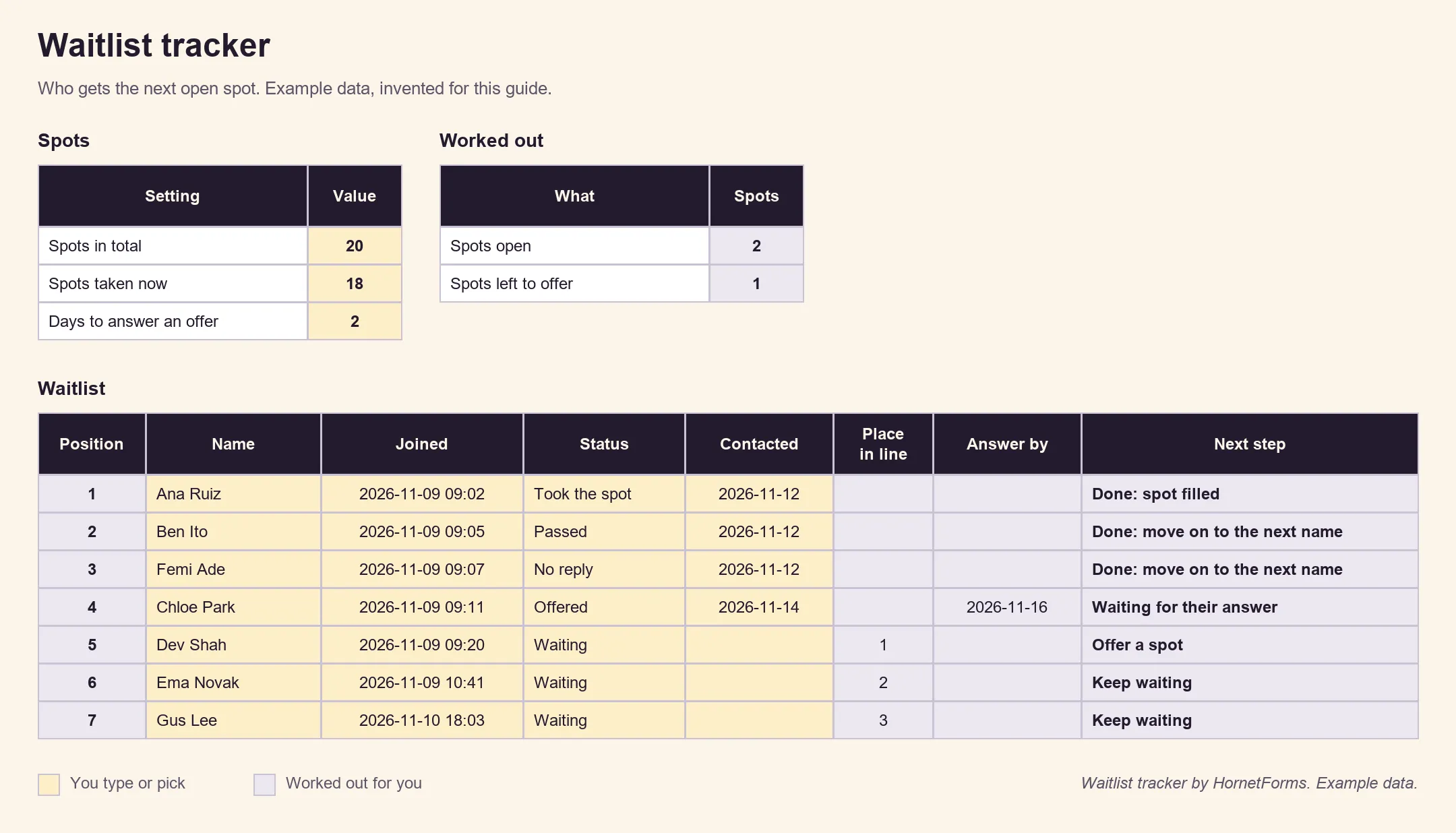
EXAMPLE data: seven made-up people. Clear them and type your own.
The sheet only keeps the list. It sends nothing, so every offer is a message from you.
Open sign-ups on your next event#
Write your rules, set the opening time, the cap and the closed form message, and share the waitlist link beside the sign-up link. The features page shows what else a form can do.
Running a workshop, a class or a volunteer day with limited places? Sign up for free and build your first come, first served sign-up form in a few minutes.
Google Forms is a trademark of Google LLC. Microsoft Forms is a trademark of the Microsoft group of companies. HornetForms is not affiliated with, endorsed by or sponsored by either company. Everything we say about them comes from their own help pages linked above, checked on November 2, 2026.