
On this page
You know you need a form. An RSVP, a sign-up sheet, a feedback survey for last week's workshop. What you don't have is the list of questions, and a blank form makes that list hard to start. Good Google Forms examples fix that: you copy what works, delete what doesn't fit, and you're done in 10 minutes.
Below are 15 Google Forms examples for real jobs at work, at school and at events. Each one lists its questions, the Google Forms question type for each, which ones to make required and one setup tip. Every Google Forms button we name comes from Google's own Docs Editors Help pages, checked on November 2, 2026. At the end there's a free pack with all 15 as printable question lists, plus three of them as CSV files you can import.
What people use Google Forms for#
Google sums up the tool in one line: "You can use Google Forms to create online surveys, quizzes, and forms, send them to others to fill out and then analyze their responses in real time" (Google Docs Editors Help, How to use Google Forms, checked November 2, 2026).
In practice, the uses of Google Forms fall into three groups:
- Collecting sign-ups: RSVPs, registrations, volunteer shifts and workshop places.
- Collecting requests: orders, job applications, time off, contact messages and new client details.
- Collecting opinions: customer feedback, parent surveys, course evaluations and quizzes.
If you've never built one, start with our step-by-step guide on how to make a Google Form. It covers question types, sections, the theme, sending and the linked spreadsheet. This post is the next step: what to put inside it.
Build these examples in HornetForms#
Every example below works in Google Forms. If you'd rather try a different builder, here's how the same list becomes a form in HornetForms, step by step:
- Start from a template, or a CSV file. The template gallery sorts templates into eight categories, from Feedback to Registration & events. Or import one of the three CSV files from the pack: each column becomes a question, and the example rows help it guess each question's type.
- Check the questions. The CSV import brings questions only, and every question starts optional. Switch on "Required" where you need an answer.
- Add logic and endings in the editor. Show, hide, require or jump based on answers, for example to skip the guest questions when someone can't come.
- Share it. Copy the link, download a QR code (PNG or SVG) or embed it on your site. People answer without an account or a sign-in, even when they upload a file.
Already have a Google Form you want to move? Rebuild it, or import a PDF or Word (.docx) copy of it and let HornetForms' AI rebuild it for you to review. That uses one AI generation per file, from the monthly allowance (three a month on the Free plan).
15 Google Forms examples by job#
Each of these Google Forms examples shows the question, then its type and whether it's required.
1. Event RSVP#
What it's for: finding out who's coming, how many guests they bring and what they eat.
Questions: Your name (Short answer, required). Email address (Short answer, required). Will you attend? (Multiple choice: Yes, No; required). How many guests are you bringing? (Dropdown: 0 to 3; required). Any dietary needs? (Checkboxes). A message for the host (Paragraph).
Setup tip: On "Will you attend?", use Go to section based on answer and send "No" to Submit form. Google's help page says: "If you want the survey to end based on an answer, you can also choose Submit form" (Show questions based on answers, checked November 2, 2026). For more RSVP ideas, see our guide to online RSVP forms.
2. Event registration#
What it's for: registering people for a conference, meetup or class, and planning the room.
Questions: Full name (Short answer, required). Email address (Short answer, required). Organization (Short answer). Ticket type (Multiple choice: General, Student, Member; required). Which sessions will you attend? (Checkboxes; required). Dietary needs (Multiple choice). How did you hear about this event? (Multiple choice). Please describe any access needs (Paragraph).
Setup tip: Limited seats? In the published form, click Set close date or response limit, then pick After a number of responses and enter your room size (View & manage form responses, checked November 2, 2026). This one comes as a CSV file in the pack.
3. Volunteer sign-up#
What it's for: filling shifts and roles for a cleanup, fair or food drive.
Questions: Full name, email address and phone number (Short answer; name and email required). Which shifts can you take? (Checkboxes; required). Which role would you like? (Multiple choice; required). T-shirt size (Dropdown). Are you under 18? (Multiple choice: Yes, No; required).
Setup tip: When "Are you under 18?" is Yes, use Go to section based on answer to open a section that asks for a parent or guardian's name and phone.
4. Workshop sign-up#
What it's for: booking people into a session and learning what they want from it.
Questions: Full name and email address (Short answer, required). Which session would you like? (Multiple choice; required). How much experience do you have? (Multiple choice; required). What do you most want to learn? (Paragraph). Will you bring your own laptop? (Multiple choice).
Setup tip: Put the session dates in the form description, so people see them before the first question.
5. Post-event survey#
What it's for: asking attendees what worked, the day after, while it's fresh.
Questions: Overall, how would you rate the event? (Linear scale, 1 to 5; required). Which session was most useful? (Multiple choice). Was the event the right length? (Multiple choice). How likely are you to come to the next one? (Linear scale). What one thing should we change next time? (Paragraph). May we email you about future events? (Multiple choice).
Setup tip: Google's sharing page says: "You can customize the message people get after they submit the form" (Publish & share your form with responders, checked November 2, 2026). Use that Confirmation message to say what you'll change and when. Our list of post-event survey questions has more to pick from.
6. Order form#
What it's for: taking orders for a bake sale, a small shop or a team merch run.
Questions: Full name and email address (Short answer, required). Which item would you like? (Dropdown; required). How many? (Short answer; required). Pickup or delivery? (Multiple choice; required). Pickup or delivery date (Date; required). Anything else we should know? (Paragraph).
Setup tip: Write the price next to each item in the Dropdown, so people see the cost as they pick. Want the form to add up the total for them? See can Google Forms calculate totals. Selling one batch with a cut-off date? Our pre-order form guide covers that.
7. Customer feedback#
What it's for: hearing from customers a day or two after a purchase or a finished job.
Questions: Overall, how satisfied are you with us? (Linear scale, 1 to 5; required). How likely are you to recommend us to a friend or colleague? (Linear scale, 0 to 10; required). Why did you give that score? (Paragraph). What did you buy or use? (Checkboxes). How did you first hear about us? (Multiple choice). Would you like us to follow up? (Multiple choice; required). Email address (Short answer).
Setup tip: Put "Why did you give that score?" straight after the score. The number tells you something is off; the reason tells you what. This one comes as a CSV file in the pack.
8. Job application#
What it's for: collecting the same details from every applicant, so you compare them fairly.
Questions: Full name, email address and phone number (Short answer, required). Which role are you applying for? (Dropdown; required). Years of experience in a similar role (Multiple choice; required). Upload your resume (File upload; required). Why do you want this role? (Paragraph; required). Earliest start date (Date).
Setup tip: Google's question types page says: "To answer this question, responders need to sign in to a Google Account" (Choose a type of question for your form, checked November 2, 2026). Say so in the form description, so applicants aren't surprised. Our job application form template goes deeper on the questions.
9. Time-off request#
What it's for: giving staff one place to ask for leave, with the dates in a sortable list.
Questions: Full name and work email (Short answer, required). Type of leave (Multiple choice; required). First day off and last day off (Date, required). Who is covering your work? (Short answer). Anything your manager should know? (Paragraph).
Setup tip: From Responses, click Link to Sheets, so the manager can sort requests by first day off. Our time off request form post adds a free template and tracker.
10. Contact form#
What it's for: letting people reach you from your website without posting your email address.
Questions: Your name and email address (Short answer, required). What is this about? (Dropdown; required). Your message (Paragraph; required). How should we reply? (Multiple choice).
Setup tip: Edit the Confirmation message to say when you usually reply, for example "within one working day". For the other forms a business site needs, see website form examples.
11. Lead form#
What it's for: learning who a prospect is and what they need before the first call.
Questions: Full name, work email and company name (Short answer, required). Team size (Multiple choice; required). What do you need help with? (Checkboxes; required). Rough budget (Multiple choice). When would you like to start? (Multiple choice).
Setup tip: Keep it to about seven questions. Ask the rest on the call.
12. Client intake#
What it's for: gathering what you need to start work for a new client, in one go.
Questions: Your name, business name and email address (Short answer, required). Which services do you need? (Checkboxes; required). What does success look like for you? (Paragraph; required). Is there a deadline? (Date). Who else should we keep in the loop? (Short answer). Anything else we should know? (Paragraph).
Setup tip: Click Add Section to split it into "About you", "The project" and "Next steps". Google's help page notes that "Sections can make your form easier to read and complete" (Edit your form, checked November 2, 2026).
13. Class quiz#
What it's for: a quick check at the end of a lesson to see what stuck.
Questions: Your name (Short answer, required). Which planet is closest to the sun? (Multiple choice; required). Which of these are gases at room temperature? (Checkboxes; required). Water boils at how many degrees Celsius at sea level? (Short answer; required). Put this in your own words: what is gravity? (Paragraph). How sure do you feel about today's topic? (Linear scale).
Setup tip: Turn on Shuffle answer choices. Google's help page says you "can shuffle answers to multiple choice, checkbox, and drop-down questions" (Edit your form, checked November 2, 2026). To add answer keys and points, follow our guide on how to make a quiz on Google Forms. Want a quiz that grades itself with a pass mark? See our free quiz maker guide.
14. Parent survey#
What it's for: asking families how the school is doing and how they like to hear from you.
Questions: Which grade is your child in? (Multiple choice; required). How satisfied are you with how the school keeps you informed? (Linear scale, 1 to 5; required). How would you like to hear from us? (Checkboxes). Overall, how satisfied are you with your child's school? (Linear scale, 1 to 5; required). What one thing should the school change, and why? (Paragraph). Would you like to help at a school event? (Multiple choice). Email address (Short answer).
Setup tip: Keep the email question optional, and ask for it only when a parent offers to help. This one comes as a CSV file in the pack, and our parent survey questions post has 60 to pick from.
15. Course evaluation#
What it's for: end-of-course feedback that helps you plan the next run.
Questions: How clear were the goals of this course? (Linear scale; required). How useful were the course materials? (Linear scale; required). How was the pace? (Multiple choice). What helped you learn the most? (Paragraph). What one change would improve this course? (Paragraph). Overall, how would you rate this course? (Rating; required).
Setup tip: Leave out a name question unless you need one. A shorter form gets more finished answers.
Google Forms examples for business, school and events#
Here are the same 15 Google Forms examples sorted by where you'd use them. For students, the class quiz and the course evaluation are the easiest to start with.
| Group | Google Forms examples | Most used question types |
|---|---|---|
| Events | Event RSVP, event registration, volunteer sign-up, workshop sign-up, post-event survey | Multiple choice, Checkboxes, Dropdown |
| Business | Order form, customer feedback, job application, time-off request, contact form, lead form, client intake | Short answer, Paragraph, Date, File upload |
| School | Class quiz, parent survey, course evaluation | Multiple choice, Linear scale, Rating |
Using Google Forms for business? The business row is the place to start, and our 10 form templates to steal has more ready-made ideas.
What to copy from a good Google form example#
A sample Google Form is only useful if you copy its habits, not just its words. Every example above follows the same six:
- Easy questions first. Name and email take a second. Open questions come near the end, when people are already invested.
- Required only where you must have the answer. Google's help page says: "To prevent people from not answering, turn on Required" (Edit your form, checked November 2, 2026). Each extra required question is one more reason to stop.
- One idea per question. "How was the food and the venue?" is two questions.
- Sections for longer forms. Anything over about eight questions reads better in sections, and sections let people skip what doesn't apply.
- A reason after every score that matters. "Why did you give that score?" turns a number into something you can fix.
- A confirmation message that says what happens next. "We'll email your tickets by Friday" tells people what to expect.
Picking the right type matters too. A Dropdown hides a long list well; Multiple choice shows a short one at a glance. Our guide to every question type and when to use it explains each choice. And if you want sample questionnaires beyond Google Forms, our questionnaire examples post has 10 more with answer formats.
When an example outgrows Google Forms#
Most of these Google Forms ideas stay simple forever. Some grow. The order form may need to take the money and show a total, and the client intake may need to look like your brand. In HornetForms, a form can take a one-time payment on Stripe's hosted Checkout page on every plan, including Free; Stripe's processing fees apply and HornetForms adds no fee of its own. A calculated field can add, subtract, multiply or divide answers, and the total can show while the person is still answering. The Design tab has 9 theme presets, 21 fonts and custom colors. People answer and upload files without an account. Our Google Forms vs HornetForms post puts the two side by side, the features page lists the rest, and Google Form with payment covers the money side.
Get the 15 Google Forms examples pack#
The free 15 Google Forms examples pack (PDF, US Letter) has every example on its own page: the questions, the Google Forms question type, whether it's required, the answer choices, the setup tip and lines for your changes. Also in A4 PDF.
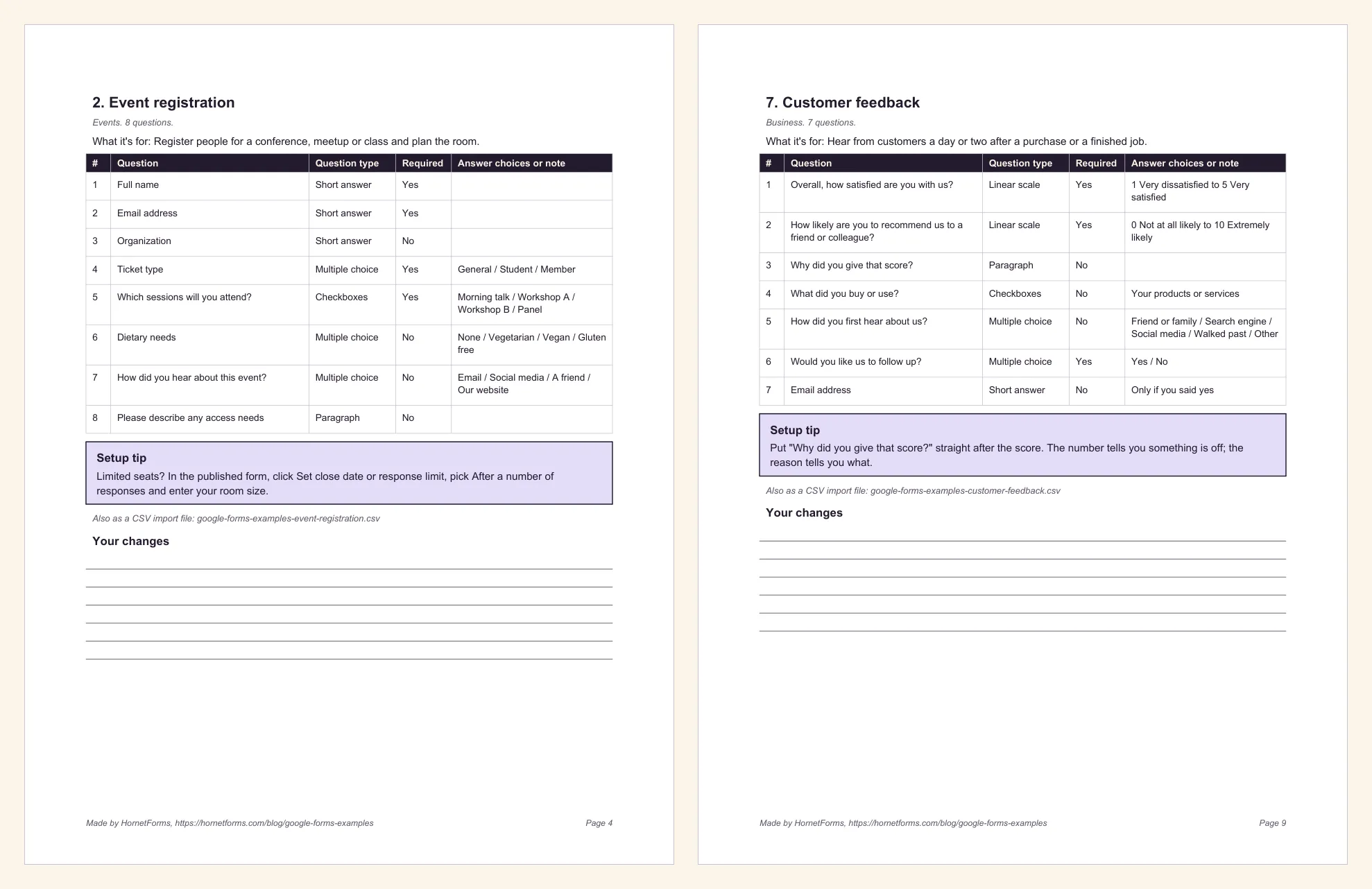
Three examples also come as CSV import files, one column per question with 10 to 12 example rows:
- Event registration (CSV): 8 questions, from ticket type to access needs.
- Customer feedback (CSV): 7 questions, with a 1 to 5 satisfaction score and a 0 to 10 recommend score.
- Parent survey (CSV): 7 questions, from grade to "help at an event".
Import one in HornetForms and each column becomes a question. The example rows only help the import guess each question's type, and they never become responses. The form takes its title from the file name, so rename it after the import. You can also open the files in Google Sheets or Excel to read the questions.
The small print#
Google Forms, Google Sheets and Google Drive are trademarks of Google LLC. HornetForms is not affiliated with, endorsed by or sponsored by Google. Every Google Forms button and quote above comes from Google's Docs Editors Help pages, checked November 2, 2026. Google changes its menus from time to time, so the linked pages have the latest wording.
Try one on a real form#
Pick the example closest to your job, cut it to the questions you'll act on, and send it to five people before everyone else. If you'd rather build your event registration or customer feedback form in HornetForms, sign up for free, import its CSV file and check the questions before you share it.