
On this page
Two weeks before the party, someone asks the question every host dreads: "So how many are coming?" You open the group chat, scroll past 40 messages and a thumbs up from your uncle, and start counting on your fingers. Then the caterer wants meal numbers.
An RSVP tracker fixes that. It's one list with every invitation you sent, who replied, how many people are coming, what they'll eat and who brings a plus-one. This guide shows how to build an RSVP tracker in Excel or Google Sheets, column by column. Then it shows how to let form replies fill it and how a guest code matches each reply to the right guest. At the end there's a free RSVP tracker template that does the counting for you.
What an RSVP tracker tracks#
A guest list says who you invited. A tracker also says what happened next. For any event, from a birthday dinner to a 200-seat gala, these are the columns that matter:
| Column | What goes in it | Why you need it |
|---|---|---|
| Guest code | A short code per invitation, like G001 | Matches each reply to the right row, even when two guests share a name |
| Guest | The name on the invitation | Who you're talking about |
| Party size | Seats on that invitation | The most people that invitation can bring |
| Invited | The date you sent it | Separates "sent, no answer" from "never sent" |
| Replied | Yes or No | Who you still need to hear from |
| Attending | Yes or No | The answer itself |
| Headcount | People coming on that invitation | Your real number for chairs and food |
| Meal | The guest's meal choice | Plate counts for the caterer |
| Plus-one | The plus-one's name, if any | Name cards and a check against the guests you offered one |
| Notes | Allergies, access needs, anything else | The details that go wrong when they live in a text thread |
Count invitations and people separately. "Eight replies" and "14 people" are both true, and only one of them tells you how many chairs to rent.
Build an RSVP tracker in Excel or Google Sheets#
You can build a basic version in about 15 minutes. Put the columns above in row 1, one invitation per row, and type Yes or No by hand as answers come in. Then add a small totals block to the side. Say Replied is column F, Attending is column G, Headcount is column H and Meal is column I:
Invitations replied:     =COUNTIF(F:F,"Yes")
Invitations coming:      =COUNTIF(G:G,"Yes")
Headcount:               =SUMIF(G:G,"Yes",H:H)
Chicken plates:          =COUNTIFS(I:I,"Chicken",G:G,"Yes")
Still to reply:          =COUNTIF(F:F,"No")
COUNTIF counts rows that match one condition. COUNTIFS takes two or more, so a meal only counts when the guest is actually coming. SUMIF adds up the headcount of the yes rows. All three work the same way in Excel and Google Sheets.
A few habits keep the numbers honest:
- Use a dropdown for Yes and No. A typed "yes " with a trailing space won't match "Yes" in COUNTIF. Data validation stops that before it starts.
- Keep numbers as numbers. A headcount typed as "two" adds nothing to SUMIF. Allow whole numbers only in that column.
- One row per invitation, not per person. A family of four gets one row with a party size of 4. Families reply together, so track them together.
That's a working tracker. The trouble starts when 60 replies arrive and you're the one typing them all in.
Let replies fill your RSVP tracker#
Typing replies from texts and emails works for a dinner party of 12. For a wedding or a school event, let guests answer a form and let the answers land in a spreadsheet.
The free RSVP form template is a good start. Guests give "Your name" and answer "Will you attend?". Only the people who say yes see the follow-up page, which asks for "Number of guests" (it leaves out the person replying) and "Anything we should know?". Add the questions your tracker needs on that second page:
| Question | Type | Note |
|---|---|---|
| Meal choice | Multiple choice | List your real menu options |
| Plus-one's name | Short answer | Leave it optional |
| Plus-one's meal | Multiple choice | Same options as Meal choice |
| guest_code | Hidden field | Guests never see it; it comes from the link |
Not sure which type fits a question you want to add? Here's every question type and when to use it. If you're still choosing how to send the form at all, our guide to collecting an online RSVP for free covers links, QR codes and embeds.
Then pick how the replies reach your sheet. Both routes work on every plan:
- Google Sheets. Link a spreadsheet once, and every RSVP lands as a fresh row. You get "Response ID" and "Submitted at" first, your questions next (one column each) and a "Response link" at the end. The
guest_codehidden field gets a column of its own as well. - CSV export. Download a CSV from the form's Responses page. It starts with Response ID, Submitted at and Started at, then one column per question in form order, then Form version. A hidden field's column is headed with its name, so
guest_codeshows up asguest_code. Times are in UTC.
Want to hear about replies as they come in? Turn on an email to yourself for each new response. Notifications start switched off. For a quick look without any sheet, the Summary tab shows how many guests picked each meal. Our guide to where your form responses can go covers Slack, Discord and Notion as well.
HornetForms gives you unlimited responses within fair use, on the Free plan too, so 300 invitations cost the same as 30. If another tool has capped you mid-event before, here's what happens when a form hits its response limit.
Match replies to your guest list with a guest code#
Here's where most setups wobble. A reply says "Sam". Is that Sam Rao or Sam Lee? A reply says "The Garcias", but your list says "Maria Garcia". Matching by name works until it doesn't.
A guest code fixes it. Give every invitation a short code (G001, G002 and so on) and send each guest a personal link that carries it. A hidden field in the form saves the code with the reply, and the guest never sees it. HornetForms supports hidden fields and URL prefill on every plan.
Add a hidden field to your form and name it guest_code. Then each guest gets their own link:
https://forms.hornetforms.com/f/your-event?guest_code=G001
https://forms.hornetforms.com/f/your-event?guest_code=G002
When Maria opens the first link and replies, her response records G001. Your tracker looks up G001 and finds her row, whatever she typed as her name.
You can go one step further and fill in a visible question too. Set the Prefill parameter of "Your name" to name, and a link ending in ?guest_code=G001&name=Maria+Garcia opens with her name already typed in. She can still change it before she presses Submit.
Good to know: the QR code on the form's Share tab holds the plain link, without any
?guest_code=value. Personal links go out by text or email. If you print one shared code on paper invitations, those replies arrive without a code, so match them by name.
Some replies will still come in without a code: a guest forwards the plain link to a friend, or scans a printed code. That's fine. Fall back to the name. The free tracker below tries the code first, then the name, and tells you which replies matched by name so you can check them.
Never change a guest code after you send the link. The code is the link, and the link is already sitting in someone's phone.
Chase the people who haven't replied#
Every guest list ends up with a short list of guests who haven't answered. That list is the point. Filter the Replied column to No, and you know exactly who to nudge.
The nudge is yours to send. A short personal text works better than a group blast, and it can carry their link again:
Hi Lena! Hoping you can make it on June 12. Could you let us know by Friday?
https://forms.hornetforms.com/f/your-event?guest_code=G005
A few tips for the chase:
- Pick a date before your real deadline. If the caterer needs numbers on June 1, chase on May 25.
- Set a close date on the form. Pick the day and the hour, and anyone who opens the link afterwards reads your own short "RSVPs are closed" note. A response limit closes the form at a number instead, which suits a room with fixed seats.
- Count "seats still to hear from", not just invitations. One unanswered family of five matters more than one solo guest.
- Type phone answers in. When someone replies by text or in the hallway, add it to the sheet the same day. The tracker should hold every answer, wherever it came from.
One honest warning: the last few replies always take the longest. Chase early, and you'll have an answer before the caterer calls you.
Baby shower and wedding versions#
The same sheet works for any event. A few tweaks fit the common ones.
Baby shower RSVP tracker#
Baby showers often skip meals and plus-ones. Keep the guest code, party size and attending columns, rename "Meal choice" to something like "Bringing a dish?" or drop it, and use Notes for gift or game details. Showers usually invite one person per row, so the party size column stays at 1 for most guests. Personal links with a guest code still help when a mom and her sister share a last name.
Wedding RSVP tracker#
Weddings lean hardest on the meal and plus-one columns. Set party size to exactly the seats on each invitation, and set "Plus-one allowed" to Yes only where you offered one. Then the sheet can flag a plus-one named on an invitation that never had one, which is a conversation you want to have early.
The wedding RSVP form template asks for a household name, a meal for each person and more. If you print a code on paper invitations and track by household name, our RSVP QR code guide includes a reply tracker built around that template. The tracker in this post takes the other route: personal links with a guest code, plus-ones, and any event.
For the invitation itself, our separate guide covers online wedding RSVP wording and questions.
How the free RSVP tracker works#
The free RSVP tracker for Excel and Google Sheets does all of the above for you. It has five tabs:
- Start here. Six steps from an empty list to a headcount.
- Guest list. One row per invitation. You type the guest code, the guest, the party size, whether you allow a plus-one and the date you sent it. Grey columns work out Replied, Attending, Headcount, Meal, Plus-one, Plus-one meal, Notes from the reply, Follow-up and a Personal link for each guest.
- Summary. Invitations sent, seats on them, replies, reply rate, headcount, plus-ones, who to chase, rows to check, and plates per meal for the caterer.
- Paste your export here. Paste your HornetForms CSV export (or a copy of your Google Sheets tab) at cell A1. The sheet finds each column by its name, so column order doesn't matter.
- Settings. Your form link, the hidden field name and the question names. The defaults match the plain RSVP template plus the four additions above. Renamed a question? Type the new name here.
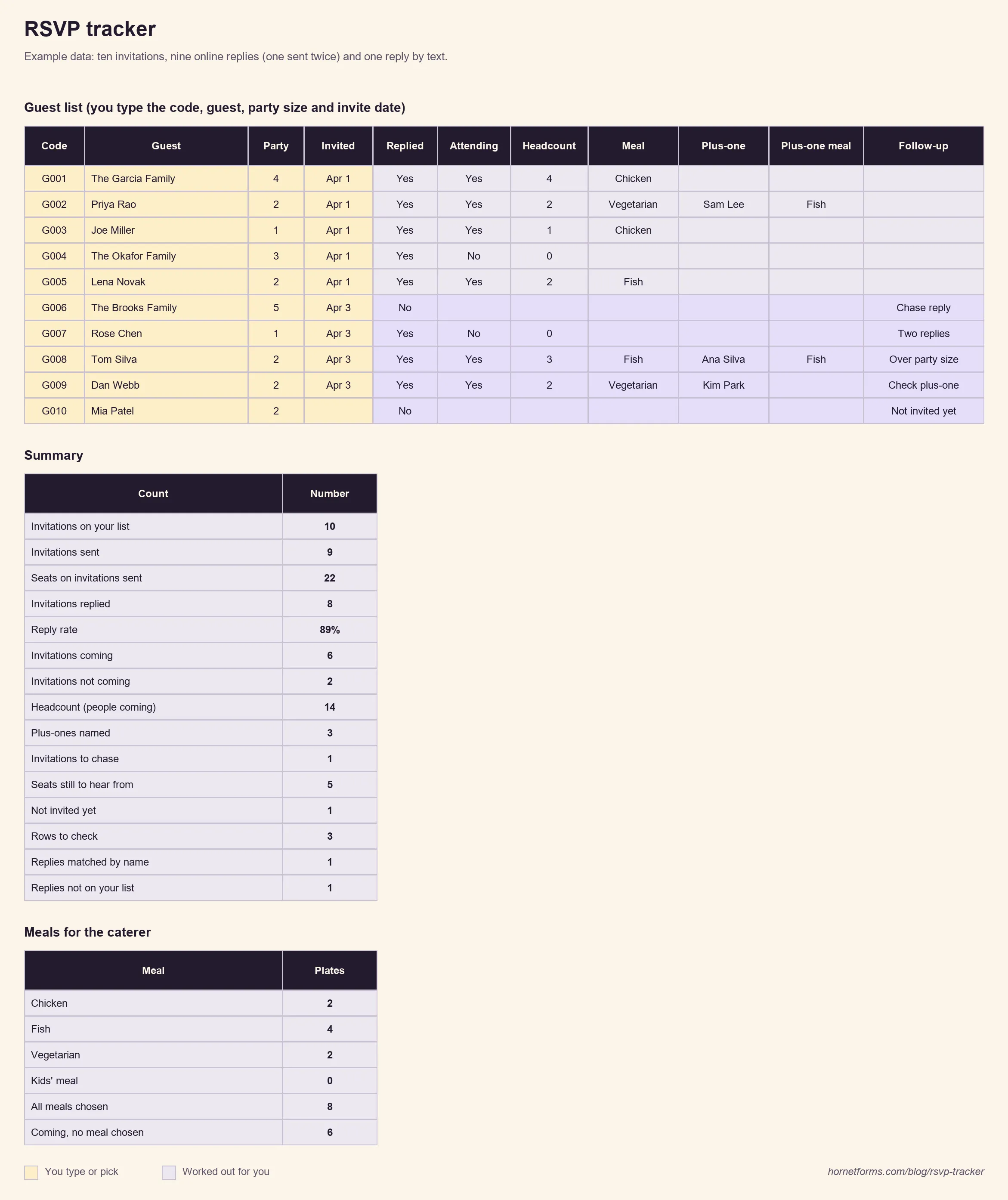
Made-up example rows. Delete them on Guest list and on Paste your export here before you add your guests.
A few things it handles that a hand-built sheet usually doesn't:
- Replies by phone or text. Type Yes or No, the number coming and the meals into the yellow reply columns on Guest list. What you type beats any online reply for that row, and the totals and meal counts include it. No form at all? Use those columns alone, and the sheet works as a plain guest list.
- Two replies from one guest. If a code replies twice, the sheet reads the newest reply by its Submitted at time. It also flags "Two replies" so you can take a look.
- Headcount math. "Number of guests" doesn't count the person replying, so the sheet adds one. A named plus-one counts as at least two people.
- Follow-up flags. Not invited yet, Chase reply, Over party size, Check plus-one and Two replies, tinted so they stand out.
- Plates nobody chose. Families bring people who had no meal question of their own. Summary shows "People coming with no meal chosen", so you know how many plates to ask about.
With the example data, Summary shows 10 invitations, 9 sent with 22 seats, 8 replied (89%), 6 coming, 2 not coming, a headcount of 14, 3 plus-ones and one family of five to chase. The caterer gets 2 chicken, 4 fish and 2 vegetarian, with 6 people still to choose.
Want to go further with your reply data, like charts by meal or answers by date? Our guide on how to analyze survey data in Excel or Google Sheets uses the same paste-and-count approach.
Questions people ask#
How do I track RSVPs for free?#
Use a spreadsheet with one row per invitation and COUNTIF totals, as above, or download the free tracker. Collect replies with a free form so they land in Google Sheets or a CSV instead of your messages.
Is there an RSVP tracker template for Google Sheets?#
Yes. The free tracker is an Excel file that opens in Google Sheets too: put it in your Drive, then choose Google Sheets from "Open with". All formulas use functions both apps share.
How do I track RSVPs for a wedding?#
Give every invitation a party size and a plus-one allowance, ask each guest for a meal choice, and track by guest code so you never mix up similar names. Then chase the "still to reply" list about a week before your caterer's deadline.
Get the free RSVP tracker#
- The tracker for Excel and Google Sheets: rsvp-tracker.xlsx, with Start here, Guest list, Summary, Paste your export here and Settings tabs.
- Plain guest list: a CSV with the tracker columns and four example rows, for any spreadsheet app.
Start tracking replies this week#
List your guests, give each one a code, and build your form from the RSVP template with a guest_code hidden field. Send the personal links, paste the replies, and let the sheet count heads and plates. Want your own domain in those links? Custom domains come with Pro and Business on the pricing page. Sign up for free and your guest list can start filling itself tonight.