
On this page
Every Sunday night, somebody in a restaurant, shop or care team rebuilds next week's schedule from memory, a wall calendar and a dozen texts. Then Ana says she told you she can't do Tuesdays anymore. An employee availability form ends that guessing game. Each person tells you, in the same shape, which days and shifts they can work, how many hours they want and which dates are out.
This guide covers what to ask, how to set up the days-by-shifts grid, when to send the form, and how to turn the answers into a schedule. At the end you'll find a free printable employee availability form (Word and PDF) and a weekly availability sheet that counts who can work each shift.
What to put on an employee availability form#
Keep it to one sitting. People fill this in on a break, often on a phone. Here's what earns a spot:
| Field | Why it's there |
|---|---|
| Name and role | So you know who can cover which job (a cook can't cover the host stand) |
| Days and shifts they can work | The heart of the form: a grid with days down the side and shifts across the top |
| Most hours a week | So you don't schedule someone for 35 hours when they asked for 20 |
| Fewest hours they'd like | So people who need the money don't quietly drift down to one shift a week |
| Dates they already know they can't work | Exams, a trip, a wedding. Not a leave request, just a heads-up |
| The date the answers start | So you know which form is current when someone sends a new one |
| Anything else that shapes their hours | School, a second job, the bus timetable, child care |
Why a grid beats a text box#
"I'm free most mornings except Wednesday, and some evenings" is a nightmare to schedule from. A grid turns it into ticks you can count. Use the same day and shift names every time, and match them to your real shifts. If your shifts are Open, Mid and Close, call them that.
What to leave out#
Don't ask why someone can't work a shift. The grid tells you what you need. If people want to add context, the "anything else" box is optional, and the printable form says to share only what they're comfortable sharing. Medical detail never belongs on an employee availability form.
Build your employee availability form in HornetForms#
You'll build this one from a blank form. Type "/" in the editor to add each question, or describe the form and let the AI build a first draft for you to edit (AI drafts use your monthly allowance).
The days-by-shifts grid. Add a matrix question. Put the days in the rows (Monday to Sunday) and your shifts in the columns (Morning, Afternoon, Evening). Then turn on multiple answers per row, so people can tick a morning and an evening on the same day. A matrix takes up to 20 rows and 10 columns, which is room for a two-week grid or extra shifts if you need them. Not sure a matrix is the right call for a question? Here's every question type and when to use it.
Hours. Add two number questions: most hours a week and fewest hours they'd like. Each number question takes a Min and a Max and a "Whole numbers only" switch, so nobody types 400 by accident.
Dates. Use a date question for "These answers apply from". Add a long text question for dates they can't work.
Who's answering. A short text question for the name and a dropdown for the role keep your labels tidy. Questions start optional, so switch on "Required" for the name, role and grid.
Personal links. Add a hidden field called employee_id. Its settings show a "Copy parameter" button for the link. Then send each person their own link:
https://forms.hornetforms.com/f/<your-slug>?employee_id=E042
https://forms.hornetforms.com/f/<your-slug>?employee_id=E043
The person never sees employee_id, but it arrives with every response, so two people called Sam stay apart.
Sharing. Staff never need an account or a sign-in to answer. Share the link in your team chat, or print the form's QR code and stick it by the time clock.
Good to know: anyone you add to your HornetForms workspace can read every response in it, whatever their role. Access is workspace-wide, so a manager sees every team's availability, not just their own. Add only the people who should see everyone's availability, and use the viewer role (Pro and Business) for managers who should read and export answers without editing the form.
When to ask for availability#
An employee availability form isn't a one-time thing. Hours change when school starts, when someone takes a second job, or when the holidays roll in. Good moments to send it:
- On a new hire's first day. Put it next to the new employee information form in your onboarding pack.
- Each season. A new school term, summer and the run-up to the holidays are the big three for shift teams.
- When someone tells you their hours changed. Send them the link, and schedule from their newest answers.
For a seasonal round, set a close date and time on the form (for example, Friday at 5 pm). After that, people see your own closed-form message instead of the form, so late answers don't sneak in after you've built the schedule.
Chasing stragglers? Send the link again in your team chat.
Availability is not time off#
Keep the two forms apart. The availability form says when someone can usually work. A time off request form asks for specific days away, gets a yes or no, and comes off a balance. If you mix them, a "can't work December 24" note turns into an unrecorded day off.
Turn the answers into a schedule#
This is where a form beats paper. You collect availability once, and the answers land somewhere you can count them.
The Summary tab#
The Summary tab shows your matrix question as a table: one row per day, one cell per shift, each with the number of people who ticked it and their share of that row, shaded by share. If Friday evening has four ticks and Friday morning has none, it jumps right out.
The export and Google Sheets#
In the CSV and Excel exports, the whole grid lands in one cell per person. Each answered day reads "Day: Shift", days are separated by a semicolon, and several shifts on one day are separated by commas:
Monday: Morning, Evening; Tuesday: Evening; Saturday: Morning, Afternoon
Days with nothing ticked are left out. Google Sheets gets the same text. Connect a Google Sheet and each new response adds a row with a Response ID column, a Submitted at column, one column per question (your employee_id hidden field gets its own) and a Response link column. Here's more on where your form responses can go, and the integrations page lists Slack, Discord and Notion too. The CSV export works on every plan; the Excel export is on Pro and Business.
Want an email for each new availability form? Owner emails start off, but you can turn on an email to yourself for each new response. You can also send each employee a confirmation email with your own subject and text, as long as the form has an email question.
Find one person's answers#
When someone sends a second form, you'll have two rows for them. Filter the responses by your employee_id hidden field to see just that person's answers, and use the newest one by Submitted at.
A weekly availability sheet that reads the grid for you#
That one-cell-per-person export is tidy, but it's hard to count by eye. The free weekly availability sheet does the counting. It opens in Excel and Google Sheets, and there's a CSV version with the same example people.
Here's how it works:
- Availability tab. One row per person: name, role, most hours a week, effective from, dates they can't work, and the availability text. Paste the cell from your export or Google Sheets row, and 21 grid cells (seven days times three shifts) fill in with "Yes" by themselves. From a paper form, type the ticks in the same shape:
Monday: Morning, Evening; Tuesday: Evening. - Coverage tab. Counts how many people can work each day and shift. Type how many people you need on each shift, and it shows where you're short and by how many.
- Settings tab. Type your day and shift names exactly as your matrix rows and columns, and the grid reads them.
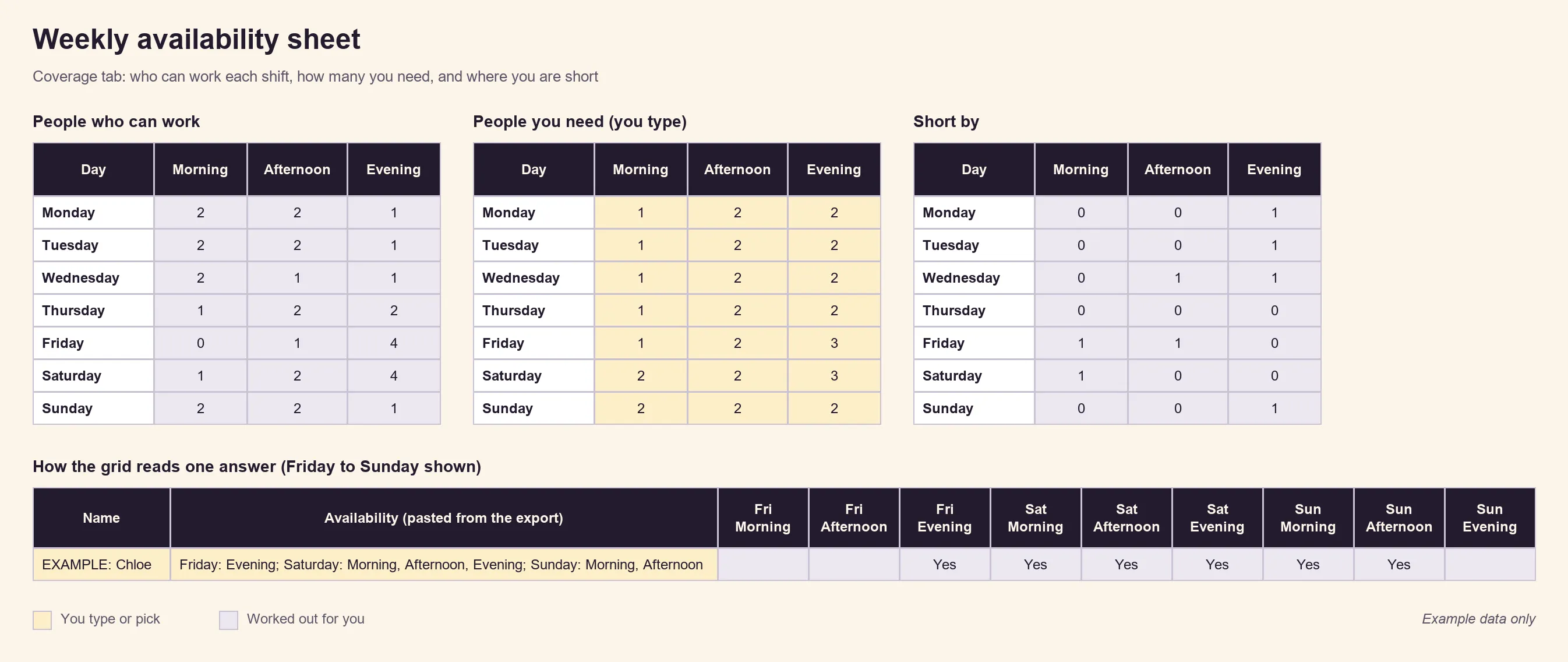
Example data only. Clear the five EXAMPLE people and type your own staffing numbers before you start.
To see who can take a shift, filter that grid column on the Availability tab to "Yes". Keep one row per person, and replace it when a new form comes in.
Scheduling laws to check#
Availability is about what people can work. Some states and cities also set rules for how and when you schedule them. These are often called predictive scheduling or fair workweek laws, and they vary a lot.
Oregon is one example. Its Bureau of Labor and Industries says that "If you work for a large employer (with at least 500 employees worldwide) in the retail, hospitality, or food services industry, they must follow rules around scheduling you for work." Under those rules, "Your employer must give you a work schedule in writing at least 14 calendar days in advance for the first day on the schedule." Workers there also have a right to give input: they "may identify any limitations or changes in your work schedule availability, including for child care needs" (Oregon BOLI, Predictive scheduling, checked 2 November 2026, no page date).
Your rules may be different, or there may be none where you are. Check your state and local rules before you set your process.
Good to know: this is general information, not legal advice. Scheduling rules depend on your state, city, industry and company size.
Free employee availability form template (printable)#
Some people would rather fill in paper, and some teams pin a stack by the time clock. The printable employee availability form asks the same things as the online version, plus a few extras for paper:
- About you, and the date the answers start (first form, a change, or a new season)
- The days-by-shifts grid: Monday to Sunday down the side, Morning, Afternoon, Evening and Not available across the top, with blanks for your real shift times
- Most and fewest hours a week, and whether they can pick up an extra shift at short notice
- Dates they already know they can't work, anything else, and a signature line
- A For the manager box: received on, entered in the sheet on, and which older form it replaces
A last page gives notes for whoever builds the schedule, including how to type a paper grid into the weekly sheet.
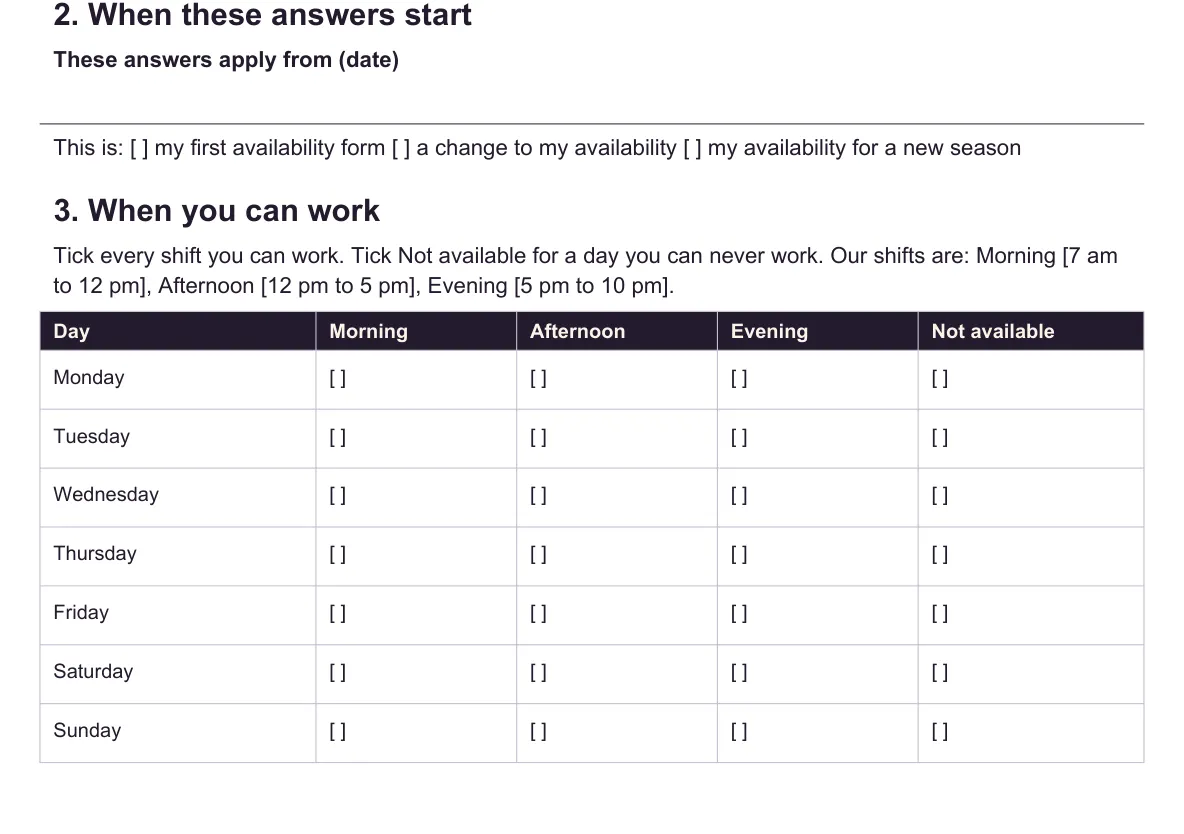
Download the PDF, US Letter, the PDF, A4 or the Word (DOCX) version to add your logo and shift times.
Hiring for the next season too? Our interview evaluation form gives your panel one scorecard to work from.
Collect availability before next week's schedule#
Build the grid once, send everyone their link, and paste the answers into the weekly sheet when the schedule comes due. The Free plan is free forever, with unlimited responses within fair use, and the pricing page shows what Pro and Business add, like the viewer role. Sign up for free and build your employee availability form before next Sunday's schedule.