
On this page
A new student signs up, and the first session opens with 20 minutes of questions. What are they working on? When is the test? Who do you call if they're running late? A tutoring registration form asks all of that before you sit down, so the first hour goes on the actual work.
This guide covers what to ask on a tutoring registration form, page by page, and how to keep it short enough to finish. It also shows how to take a one-time registration fee in the same step, let families book the first session, and keep every student in one place. At the end you'll find a free template, printable copies for walk-in sign-ups and a student tracker sheet.
What a tutoring registration form should ask#
Ask what you need for the first session and for reaching the right adult. Everything else can wait for your first chat. Here's the full set from our template, across three short pages:
| Question | Type | Why it's there |
|---|---|---|
| Student's full name | Short text, required | So you know who you're teaching |
| Student's level | Dropdown, required | Elementary school to adult learner, so you pitch the material right |
| Is the student under 18? | Multiple choice, required | It decides whether the guardian question shows |
| Parent or guardian name | Short text, shown and required for "Yes" | The adult you talk to about a younger student |
| Email and Phone | Email and phone, required | Where session details go |
| Subjects | Checkboxes with Other, required | Math, English or reading, Science, A language, Test prep, Study skills |
| Which topics feel hardest right now? | Long text | The plan for your first session, in the family's words |
| Is there a test or exam coming up? | Multiple choice | A "Yes" shows the two test questions |
| Which test? and Test date | Short text and date, shown for "Yes" | Turns a vague goal into a deadline |
| What would make tutoring a success? | Long text | A grade, a test score or more confidence each need a different plan |
| Upload a recent report or teacher comments (optional) | File upload | Shows you the gaps a teacher already spotted |
| Anything that helps the student learn | Long text | A learning support plan, extra time, short breaks |
| Where would you like sessions? | Multiple choice, required | Online, In person or Either is fine |
| When are you free? | Checkboxes, required | Weekday afternoons, Weekday evenings, Saturday, Sunday |
| How often? | Multiple choice | Once a week, Twice a week, Just before tests, Not sure yet |
| How did you hear about us? | Dropdown | Tells you which referrals bring students |
Who the student is, and who to contact#
The first page of the tutoring registration form starts with the student's name and level. Then it asks "Is the student under 18?" with a plain Yes or No. A Yes shows "Parent or guardian name" and makes it required, while an adult learner never sees it. The email and phone on the same page belong to whoever handles the bookings. For a younger student, that's usually a parent.
What to work on#
Page two is where the tutoring starts before the tutoring starts. Subjects come as checkboxes with an Other box, because "A language" never says which one. Then the form asks which topics feel hardest, in the family's own words.
The test questions only show when someone answers Yes to "Is there a test or exam coming up?". "Which test?" and "Test date" give you a deadline to plan backwards from. "What would make tutoring a success?" comes next, and the answers vary a lot. One family wants a grade, another wants a test score, and a third just wants their child to stop dreading math.
A report card or a teacher's note saves a lot of guessing. The optional file upload takes a photo or a PDF, up to 10 MB per file on Free (no plan cap on Pro and Business). Families never need an account or a sign-in to answer or to upload. That's worth knowing if you've used Google Forms for this before. Its help page says that for a file upload question, "To answer this question, responders need to sign in to a Google Account." (Google Docs Editors Help, question types, accessed 27 October 2026.)
When and where#
Page three asks where sessions should happen and when the student is free. Ask for parts of the week, not exact times. "Weekday evenings" stays true all term, while "Tuesday at 5" changes by next month. "How often?" includes "Not sure yet", since plenty of families want your advice first.
Good to know: ask only what you'll use. If you'll never read the answers to "How did you hear about us?", delete the question.
Keep your tutoring registration form short enough to finish#
Parents often fill in forms on a phone while they wait at pickup. Three habits help them get to the end:
- Short pages with a progress bar. Multi-page forms show a progress bar on every plan, so people can see how much is left.
- Questions that show only when they apply. The template's two logic rules hide the guardian name and the test questions until someone needs them. Our logic, piping and calculations guide shows how rules like these work.
- Required only where you mean it. The template requires eight answers, plus the guardian's name for students under 18. Everything else is optional.
Each page also has a short "why we ask" line, like "So we know who we're teaching and who to contact." People answer more freely when they can see the reason. Want to add a question of your own? Here's which question type to pick.
Take a registration fee in the same form#
Asking for money after the first session feels awkward for everyone. A Payment block lets your tutoring registration form take a one-time registration fee, or the fee for the first session, right after the last question. It works on every plan, Free included.
Connect your own Stripe account#
A workspace admin connects a Stripe account once, under Settings, then Payments. The money goes straight to your Stripe account, and you are the merchant of record. Families pay on Stripe's hosted Checkout page, so HornetForms never sees or stores card data. HornetForms adds no fee of its own, and Stripe's normal processing fees apply.
Add the Payment block to your copy#
The template comes without a Payment block, because the Stripe account has to be yours. Adding one takes about a minute:
- Open your copy of the template and add a Payment block at the end of page three.
- Set a fixed amount, like your registration fee or the price of the first session.
- Pick your currency.
Want the fee to depend on the answers? Add a calculated field, say fee, and logic rules that fill it in. Then set the Payment block's price to come from that field instead of a fixed amount:
Where would you like sessions? is "Online"          → fee = 40
Where would you like sessions? is "In person"       → fee = 50
Where would you like sessions? is "Either is fine"  → fee = 40
These are sample prices, so swap in your own. Some families won't pay online, for example when a school covers the cost. Add a question like "How would you like to pay?" with "Online now" and "At the first session". Then add a rule that hides the Payment block for "At the first session". When logic hides the block, or the price comes out at 0, the form completes normally.
What happens while they pay#
Until a family finishes on Stripe's page, their registration waits in an Awaiting payment tab. Emails, webhooks and integrations fire only after the payment goes through. So your "new student" email always means a paid registration. Afterwards, Stripe sends the family back through HornetForms to your thank-you screen. Set a redirect URL on the form if you'd rather send them to your own welcome page. Refunds happen in your own Stripe Dashboard, and HornetForms shows the refund status on the response.
Let them book the first session in the same form#
Your tutoring registration form can end the back-and-forth over times too. Add a scheduling question with your Calendly or Cal.com link, on every plan. Families pick a slot without leaving the form, and the booking appears in the response next to their answers.
The booking happens inside the form, before the payment page, so Calendly or Cal.com treats it like any other booking. If a response is still in the Awaiting payment tab, check in with the family before that session. Reminders and calendar invites come from Calendly or Cal.com, as they always do.
When your timetable is full#
You only have so many hours in a week. Set a response limit on your tutoring registration form, on every plan, and it closes when it reaches your number. While a family is on the payment page, the form holds their place under that limit. So two families paying at the same moment can't push you past it. A close date works too, if registration ends on a set day.
When the form closes or fills up, visitors see your own closed message, up to 500 characters. Make it useful, like "Fall spots are full. Email us to join the list for spring."
Get the free tutoring registration form template#
Our tutoring registration form template has three short pages: About the student, What to work on, and When and where. It has the two logic rules above, a "why we ask" line on each page, and a thank-you screen that says "You're registered!"
- Open it in HornetForms. The template page at
forms.hornetforms.com/templates/tutoring-registrationhas a Use this template button. It takes you through sign-up and opens your own copy. Already have an account? It's in the template gallery under Education. - Make it yours. Swap the Subjects options for what you teach, and trim the levels to the students you take.
- Add the extras. A Payment block and a scheduling question, as described above.
To share it, embed the form on your own site as inline, popup, slider or full page, on every plan. With the HornetForms embed script, the whole page goes to Stripe for the payment step. Each form also gets a QR code (PNG or SVG) for a flyer on the library noticeboard.
Print a copy for walk-in sign-ups#
Some families would rather fill in a paper tutoring registration form at an open day or a first meeting. Download the PDF, US Letter, the PDF, A4 or the Word (DOCX) version if you want to add your logo. The printable has the same 18 questions, with "Tick one" hints and a note beside each follow-up question that says when to answer it. Later, type the paper answers into your own form, so every student ends up in one list.
Keep every student in one sheet#
After a family registers, you can turn on an email to yourself for each new student, on every plan. It can also add a row to Google Sheets, and our guide on how to send form responses to Google Sheets, Slack or Notion shows the setup. For the student's file, download any response as a PDF.
To track tests and sessions, use the free student tracker. It opens in Excel and Google Sheets:
- Export your responses. Download the CSV from your form's Responses page.
- Paste them in. Clear the example rows on the Responses tab, then paste your CSV at cell A1, headers included. The sheet finds columns by their names, so the order doesn't matter.
- Read the Students tab. You get one row per registration, with level, subjects, guardian, contact details, the test and its date, and the days left until it. A test 14 days away or less shows as Soon, and you can change that number on the Lists tab.
- Log each session. On the Sessions log, type the date, pick the student, and add the topic, the minutes and Y or N for paid. The Students tab adds up sessions, minutes, paid and not paid, and shows the last session date.
The Paid column is per session, and you type it yourself. It stays separate from any registration fee the form takes. There's also a CSV with just the column headers if you'd rather build your own sheet.
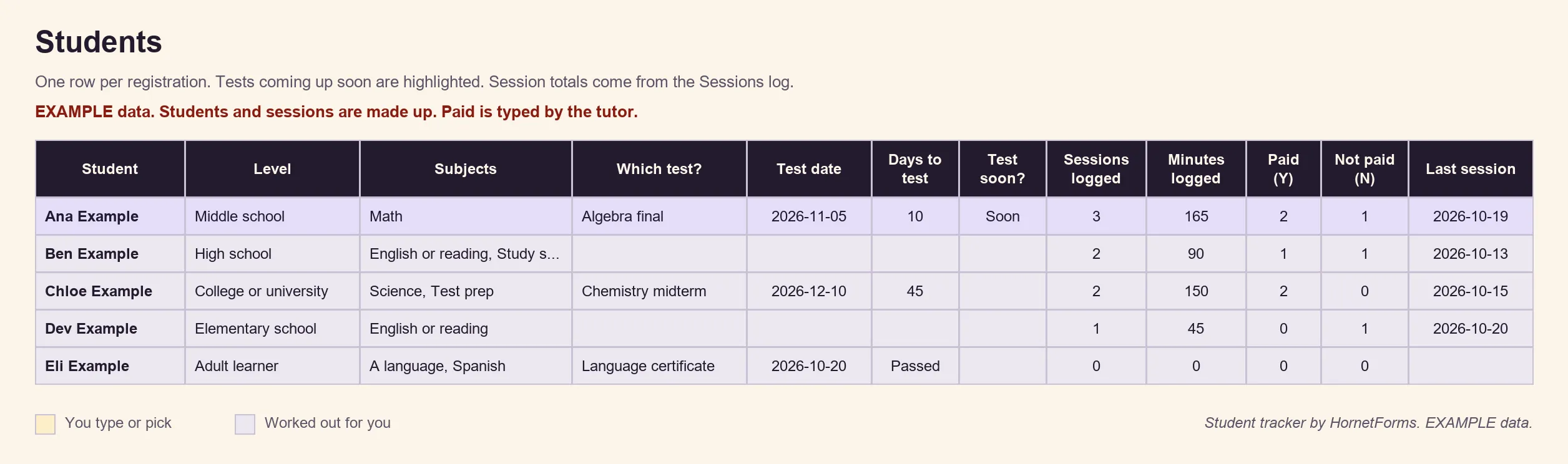
EXAMPLE data only: the students, tests and sessions are made up, and days to test counts from the day we made the image. Clear the example rows before you paste your own.
HornetForms has unlimited responses on every plan, so a busy September never runs into a response cap halfway through term. The only limit is the one you set.
Open registration for next term#
A good tutoring registration form asks who the student is, what to work on and when they're free. It brings in a parent only for students under 18 and takes the fee in the same step. Then the tracker keeps tests and sessions in view. The Free plan is free forever, and the features page has the wider tour. Sign up for free and open registration for next term.