
On this page
Notion forms mean two things when people search for them. One is the form Notion builds right into a database. The other is a form from a form builder that writes each answer into a Notion database for you. Both end in the same place: one page per response, with answers in the right columns.
The hard part is the same too. If a question and a property don't match, a date lands as text, a choice turns into a messy string, and your board view stops making sense.
This guide covers both kinds of Notion forms. You'll see how the built-in one works, which property type fits each question, and how to connect a HornetForms form step by step. At the end there's a free request tracker you can copy.
How Notion's built-in forms work#
Here's what Notion's help page on forms says about its built-in Notion forms, as of October 2026 (we checked it on 27 October):
- Forms live on databases. Each question in the form connects to a property in the database.
- Responses become database entries. By default they show up in a Table view called Responses, with your questions as properties.
- Every plan can use them. All members on all Notion plans can create and use forms.
- Logic depends on the plan. The help page says conditional logic is only available on the Business and Enterprise plans. Notion's forms product page describes it differently, so check both pages for the current status.
- Web-shared forms don't record who answered. For a form shared with anyone on the web, Notion leaves out the respondent's name. Add an email question if you need to reply.
- Build on a computer. Creating and customizing a form only works in Notion's desktop and web apps. Filling one in works on a phone too.
When the built-in form is enough#
If your team already works in Notion and the form stays inside the workspace, start with built-in Notion forms. They're free, they live next to the data, and there's nothing to connect. A weekly check-in, an internal IT request or a quick team poll is a good fit.
When to send another form into Notion#
Sometimes Notion forms have to do more than collect answers from people who already use Notion. A separate form builder that writes into your database earns its place when you need:
- A branded form on your own site, embedded inline, as a popup, a slider or a full page, in your fonts and colours.
- Source tracking, such as a hidden field that records which client or channel sent each request.
- File uploads with a link back, so the Notion page names the files and links to the full response.
- Conditional logic on a free plan, to show, hide or require questions based on earlier answers.
- One form that feeds several tools, for example Notion for the work, Slack for the alert and Google Sheets for a monthly report.
HornetForms does all five, and its Notion integration is free on every plan. The integrations page lists every tool it connects to. The rest of this guide uses it, but the database rules apply whatever tool fills your database. Coming from Google Forms? See how to send Google Forms to Notion.
Design the Notion database before the form#
Start with the database, not the form. It's much easier to write questions for a table you've planned than to fix a table after 50 responses.
Four rules keep Notion forms tidy:
- One page per request. Each response becomes one row. Don't plan a page that collects many requests.
- Property names match question labels. If the question says "Needed by", name the property "Needed by". HornetForms lines questions up with properties of the same name for you.
- No commas in option names. Notion can't keep a comma inside a Select or Multi-select option. HornetForms swaps any comma for a space, so write "Data or report" instead of "Data, reports".
- Team-only columns stay in Notion. Status, Owner and Notes belong to the people working the request. The form never fills them.
Which Notion property type fits each question#
We checked this table against the HornetForms Notion integration's own code. The middle column is the property type HornetForms picks for each question, and the one it creates in a new database.
| Question type | Notion property | What lands in it |
|---|---|---|
| Short text, long text | Text | The answer, up to 2,000 characters |
| The email address | ||
| URL | URL | The web link |
| Phone | Phone | The phone number |
| Number, rating, linear scale | Number | The number, ready to sum or sort |
| Date | Date | The date |
| Multiple choice, dropdown | Select (or Multi-select) | The chosen option |
| Checkboxes, multi-select | Multi-select | Each ticked option as its own tag |
| File upload, signature | Text | The file names, separated by commas, plus a Response link that opens the files |
| Hidden field | Text | The value from the link |
| Any other question (ranking, matrix, time, a calculated score) | Text | The answer as you'd read it |
Two more choices are open to you. Any question can go into a Text property. And you can point any question at a Checkbox property by hand: it ticks when the question has an answer.
Other Notion property types, like Files & media, Status, Person, Relation and Formula, stay as columns your team manages in Notion. Need help picking the question first? Here's a guide to which question type to pick.
Connect a form to a Notion database in HornetForms#
The setup takes a few minutes. Open your form in HornetForms, go to the Integrations tab and find the Notion card.
- Press Connect Notion.
- On Notion's consent screen, share the pages you want HornetForms to use. HornetForms can only see what you share here.
- Choose a database. Press Use next to an existing one, or pick Create a new database and choose the page it should live under.
- If you picked an existing database, review the field mapping. Each question sits next to a dropdown of matching properties. HornetForms fills in same-name properties for you. Set Page title to the question that should name each page, and choose Don't send for anything you want to keep out of Notion.
- Press Save, then Send test. A test page appears in your database. Check it, then delete it.
A new database comes ready-made. HornetForms adds a "Response" title, a "Submitted at" date, a "Response ID" text property and a "Response link" URL. Then it adds one property per question, each with the type from the table above.
Good to know: keep the Response ID property. HornetForms writes each response's ID there, and if a delivery has to retry, it checks that ID first, so a retry never creates a second page. If the database has no Response ID property, HornetForms adds one when you save.
What lands in each new Notion page#
Every completed response becomes one new page. The page title is the question you picked, or "Response" with the date and time if you leave it on the default. Uploaded files arrive as file names, and the Response link opens the full response, files included, in HornetForms.
A few habits keep it clean:
- Text fits 2,000 characters per property. Set a 2,000-character limit on long text questions, so every word reaches Notion.
- HornetForms creates the page once, when someone completes the form. From then on, your team works the request in Notion.
- Added a question later? Add a matching property in Notion, then choose Edit field mapping on the Notion card and pick it.
A request tracker template built for Notion#
To skip the planning for your first Notion forms project, start from our Request tracker for Notion template. Every question label is already a Notion property name, and no option has a comma. You'll find it in the template gallery under Operations, or at forms.hornetforms.com/templates/notion-request-tracker.
It has 14 fields across two pages:
| Field | Question type | Notion property |
|---|---|---|
| Request title | Short text, required | Title (pick it as Page title) |
| Request type | Multiple choice, required | Select |
| Details | Long text, required, up to 2,000 characters | Text |
| Priority | Dropdown, required: Low, Normal, Urgent | Select |
| Needed by | Date (required when Priority is Urgent) | Date |
| Areas | Checkboxes | Multi-select |
| People affected | Number | Number |
| Reference link | URL | URL |
| Attachments | File upload | Text |
| Requested by, Email, Team | Short text, email, dropdown | Text, Email, Select |
| client, source | Hidden fields | Text |
The two hidden fields read their values from the link. Share a different link with each client or channel, and every request records where it came from:
https://forms.hornetforms.com/f/requests?client=acme&source=intranet
Swap requests for your own form's address. The guide to logic, piping and hidden fields from the URL shows more ways to use them.
There are two downloads to set up the Notion side:
- The tracker as a CSV for Notion's import: notion-request-tracker.csv. It has all 20 columns: the 14 fields, the three properties HornetForms writes (Submitted at, Response ID and Response link) and the team-only Status, Owner and Notes. In Notion, go to Settings, then Import, then CSV, as Notion's import help page describes. Then delete the three example rows.
- A one-page setup checklist with 10 steps and the property table: PDF, US Letter, PDF, A4 or Word (DOCX).
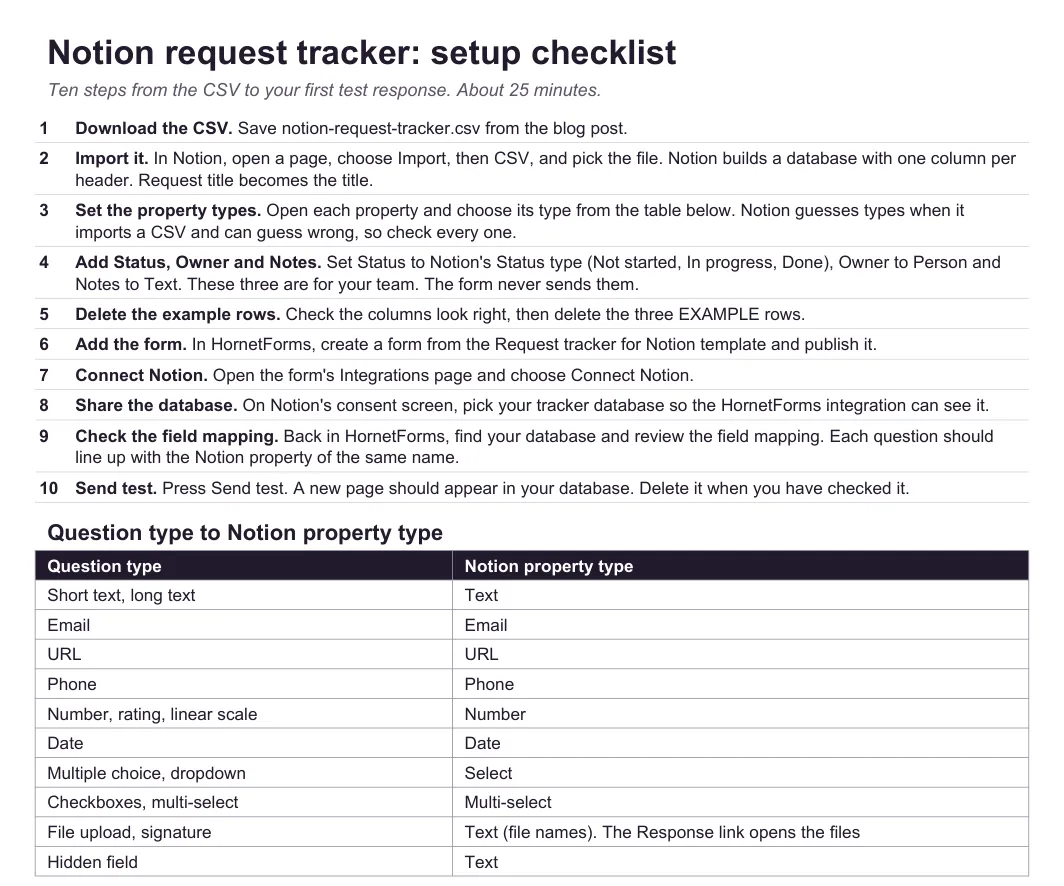
The checklist's steps and property table. The download also has four short tips.
After the import, set each property's type to match the table above, because a CSV import can guess wrong. Then connect the form and press Use next to the tracker. Prefer a fresh start? Choose Create a new database in HornetForms instead, and it builds the properties for you.
Some requests still arrive on paper or over the phone. For those, there's a printable copy of the form: PDF, US Letter, PDF, A4 or Word (DOCX).
Agencies can use the same setup for client work. Build the form from our creative brief template, connect it to Notion, and each brief becomes its own page.
Keep the Notion database tidy after launch#
Notion forms only pay off if people can find the next job in the database. Three views do most of the work:
- New this week: a table filtered to the past week of Submitted at, newest first.
- Urgent: a table of Urgent requests that aren't done, sorted by Needed by.
- Board by Status: a board grouped by Status, so the team can drag cards along.
Hide Response ID, client and source in the everyday views. Keep the properties, though, since they hold the history.
To bring earlier responses into the database, export them as CSV from the form's Responses tab. Then use Notion's Merge with CSV from the database's menu, as its import help page explains. Notion says merges add rows and don't update existing ones, and that your CSV headers should match the property names exactly. The export has a Response ID column, so check it against the database first and you won't add the same request twice.
Notion forms questions, answered#
Are Notion forms free?#
Notion's help page says all members on all Notion plans can create and use forms. On the HornetForms side, the Notion integration is free on every plan, Free included, with unlimited responses.
Can Notion forms use conditional logic?#
Notion's help page lists conditional logic for its Business and Enterprise plans. In HornetForms, conditional logic works on every plan: show, hide, require or skip questions based on earlier answers.
Can a form send answers straight to a Notion database?#
Yes. Notion's own form sits on top of its database. HornetForms writes one page per completed response into a database you choose, or one it creates for you.
Can I set a default value from a link?#
In HornetForms, yes. Give a question a Prefill parameter, then add it to the link, like ?team=Marketing. For choice questions, the value matches the option label. Keep personal details, like email addresses, out of links you share.
Try it on a real form#
Pick one request that keeps getting lost in chat. Import the tracker CSV, copy the template and connect it to your database. Then share the link with your team. Sign up for free and send your first response to Notion.